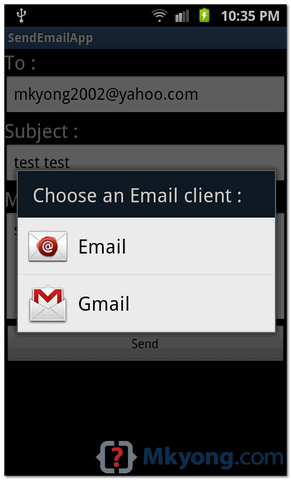
In Android, you can use Intent.ACTION_SEND to call an existing email client to send an Email. See following code snippets : Intent email = new Intent(Intent.ACTION_SEND); email.putExtra(Intent.EXTRA_EMAIL, new String[]{"[email protected]"}); email.putExtra(Intent.EXTRA_SUBJECT, "subject"); email.putExtra(Intent.EXTRA_TEXT, "message"); email.setType("message/rfc822"); startActivity(Intent.createChooser(email, "Choose an Email client :")); P.S This project is developed in Eclipse 3.7, and tested with Samsung Galaxy S2 (Android […]

Read more How to send Email in Android

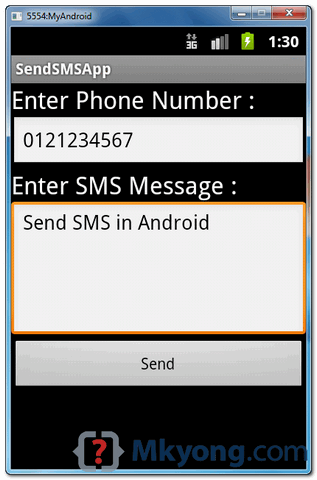
In Android, you can use SmsManager API or device’s Built-in SMS application to send a SMS message. In this tutorial, we show you two basic examples to send SMS message : SmsManager API SmsManager smsManager = SmsManager.getDefault(); smsManager.sendTextMessage("phoneNo", null, "sms message", null, null); Built-in SMS application Intent sendIntent = new Intent(Intent.ACTION_VIEW); sendIntent.putExtra("sms_body", "default content"); sendIntent.setType("vnd.android-dir/mms-sms"); […]

Read more How to send SMS message in Android

In Android, you can use PackageManager , hasSystemFeature() method to check if a device has camera, gps or other features. See full example of using PackageManager in an activity class. package com.mkyong.android; import android.app.Activity; import android.content.Context; import android.content.pm.PackageManager; import android.os.Bundle; import android.util.Log; public class FlashLightActivity extends Activity { @Override public void onCreate(Bundle savedInstanceState) { super.onCreate(savedInstanceState); […]

Read more Android : how to check if device has camera

In this tutorial, we show you how to turn on/off the phone camera led or flashlight in Android. See code snippets : 1. Turn on camera = Camera.open(); Parameters p = camera.getParameters(); p.setFlashMode(Parameters.FLASH_MODE_TORCH); camera.setParameters(p); camera.startPreview(); 2. Turn off camera = Camera.open(); Parameters p = camera.getParameters(); p.setFlashMode(Parameters.FLASH_MODE_OFF); camera.setParameters(p); camera.stopPreview(); And, put following permission on AndroidManifest.xml. <uses-permission […]

Read more How to turn on/off camera LED / flashlight in Android

A small Android tip to show you how to center button on screen. Wrap button in RelativeLayout, and set following attributes to “true“. android:layout_centerVertical="true" android:layout_centerHorizontal="true" Following is a full example to demonstrate the use of above tip to center a button on screen. 1. Android Layout A button in layout. File : res/layout/main.xml <?xml version="1.0" […]

Read more Android – How to center button on screen

In Android, Toast is a notification message that pop up, display a certain amount of time, and automtaically fades in and out, most people just use it for debugging purpose. Code snippets to create a Toast message : //display in short period of time Toast.makeText(getApplicationContext(), "msg msg", Toast.LENGTH_SHORT).show(); //display in long period of time Toast.makeText(getApplicationContext(), […]

Read more Android Toast example

In this tutorial, we will enchance the previous AlertDialog example, to make it able to accept user input, just like a PromptDialog. More specific, this is a custom AlertDialog example. See following steps : Create a prompt dialog layout (XML file). Attach the prompt dialog layout to AlertDialog.Builder. Attach the AlertDialog.Builder to AlertDialog. Done. P.S […]

Read more Android prompt user input dialog example

In this tutorial, we show you how to make a phone call in Android,and monitor the phone call states via PhoneStateListener. P.S This project is developed in Eclipse 3.7, and tested with Android 2.3.3. 1 Android Layout Files Simpel layout file, to display a button. File : res/layout/main.xml <?xml version="1.0" encoding="utf-8"?> <LinearLayout xmlns:android="http://schemas.android.com/apk/res/android" android:layout_width="fill_parent" android:layout_height="fill_parent" […]

Read more How to make a phone call in Android

In this tutorial, we will demonstrates the use of TabLayout to render 4 tabs – “Android”, “Windows”, “Apple” and “BlackBerry”, each tab contains a textview to display a simple message. P.S This project is developed in Eclipse 3.7, and tested with Android 2.3.3. 1. Tab Images Put 4 tab images in “res/drawable” folder. The tab […]

Read more Android TabLayout example

In Android, GridView let you arranges components in a two-dimensional scrolling grid. For detail attribute exaplanation, see GridView reference. In this tutorial, we will show you 2 common GridView examples : Normal way, just display text in GridView layout. Create a custom adapter to display image and text in GridView layout. P.S This project is […]

Read more Android GridView example

In Android, you can configure the starting activity (default activity) of your application via following “intent-filter” in “AndroidManifest.xml“. See following code snippet to configure a activity class “logoActivity” as the default activity. File : AndroidManifest.xml <activity android:label="Logo" android:name=".logoActivity" > <intent-filter > <action android:name="android.intent.action.MAIN" /> <category android:name="android.intent.category.LAUNCHER" /> </intent-filter> </activity> For example, let said you have […]

Read more How to set default activity for Android application

In Android, an activity is represent a single screen. Most applications have multiple activities to represent different screens, for example, one activity to display a list of the application settings, another activity to display the application status. Note Refer to this official Android activity article to understand more about Android activity. In this tutorial, we […]

Read more Android activity – from one screen to another screen

In Android, you always put either “wrap_content” or “fill_parent” on component’s attribute “layout_width” and “layout_height“, did you wonder what’s the different? See following definition : wrap_content – The component just want to display big enough to enclose its content only. fill_parent – The component want to display as big as its parent, and fill in […]

Read more Android wrap_content and fill_parent example

Here’s a code snippet to show you how to use “android.content.Intent” to open an specify URL in Android’s web browser. button.setOnClickListener(new OnClickListener() { @Override public void onClick(View arg0) { Intent intent = new Intent(Intent.ACTION_VIEW, Uri.parse("https://mkyong.com")); startActivity(intent); } }); Note For full example, please refer to this – Android button example. References Android Button JavaDoc Android […]

Read more How to open an URL in Android’s web browser

In Android, just use “android.widget.Button” class to display a normal button. In this tutorial, we show you how to display a normal button, add a click listener, when user click on the button, open an URL in your Android’s internet browser. P.S This project is developed in Eclipse 3.7, and tested with Android 2.3.3. Note […]

Read more Android button example

In Android, you can use “android.widget.ImageView” class to display an image file. Image file is easy to use but hard to master, because of the various screen and dpi in Android devices. Note Please refer to this official Android’s “Drawable Resource” and “Screen Support” article for better understand of how image works in Android. In […]

Read more Android ImageView example

In Android, you can use “android.widget.TimePicker” class to render a time picker component to select hour and minute in a pre-defined user interface. In this tutorial, we show you how to render time picker component via android.widget.TimePicker in current page, and also in dialog box via android.app.TimePickerDialog. In addition, we also show you how to […]

Read more Android time picker example

In Android, you can use “android.widget.DatePicker” class to render a date picker component to select day, month and year in a pre-defined user interface. In this tutorial, we show you how to render date picker component in current page via android.widget.DatePicker, and also in dialog box via android.app.DatePickerDialog. In addition, we also show you how […]

Read more Android date picker example

Problem Android development with Eclipse IDE, sometime it hit following “adb” error message and caused the application fail to start? [2011-11-22 15:17:07 – HelloWorld] —————————— [2011-11-22 15:17:07 – HelloWorld] Android Launch! [2011-11-22 15:17:07 – HelloWorld] The connection to adb is down, and a severe error has occured. [2011-11-22 15:17:07 – HelloWorld] You must restart adb […]

Read more Android : The connection to adb is down, and a severe error has occurred.