In Android, you always put either “wrap_content” or “fill_parent” on component’s attribute “layout_width” and “layout_height“, did you wonder what’s the different?
See following definition :
- wrap_content – The component just want to display big enough to enclose its content only.
- fill_parent – The component want to display as big as its parent, and fill in the remaining spaces. (renamed match_parent in API Level 8)
Above terms may not make sense now, let see following demonstration :
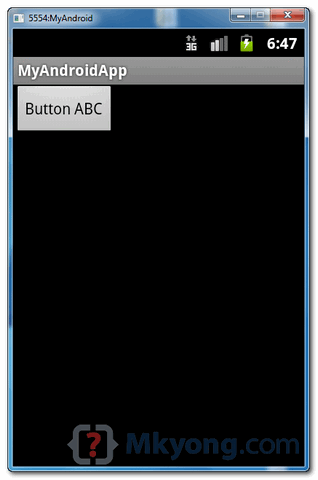
1. wrap_content
A button component, set “wrap_content” on both width and height attribute. It tell Android to display the button big enough to enclose it’s content “Button ABC” only.
<?xml version="1.0" encoding="utf-8"?>
<RelativeLayout xmlns:android="http://schemas.android.com/apk/res/android"
    android:layout_width="fill_parent"
    android:layout_height="fill_parent" >

    <Button
        android:id="@+id/btnButton1"
        android:layout_width="wrap_content"
        android:layout_height="wrap_content"
        android:text="Button ABC"/>

</RelativeLayout>
2. fill_parent – width
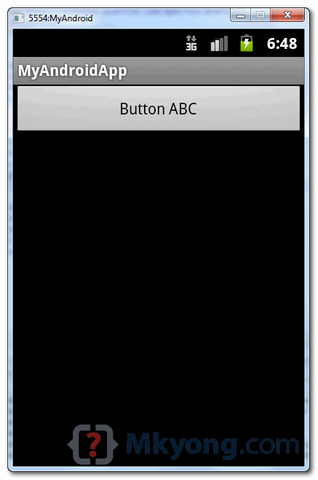
Change the “layout_width” to “fill_parent“, now, the button’s width will fill in the remaining spaces, just as big as it’s parent “RelativeLayout“, but button’s height is still big enough to enclose it’s content only.
<?xml version="1.0" encoding="utf-8"?>
<RelativeLayout xmlns:android="http://schemas.android.com/apk/res/android"
    android:layout_width="fill_parent"
    android:layout_height="fill_parent" >

    <Button
        android:id="@+id/btnButton1"
        android:layout_width="fill_parent"
        android:layout_height="wrap_content"
        android:text="Button ABC"/>

</RelativeLayout>
3. fill_parent – height
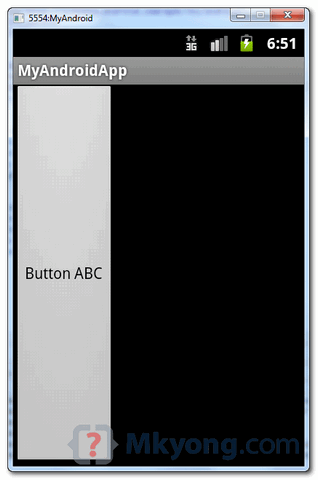
Change the “layout_height” to “fill_parent“, now, the button’s height will fill in the remaining spaces, just as big as it’s parent “RelativeLayout“, but button’s width is still big enough to enclose it’s content only.
<?xml version="1.0" encoding="utf-8"?>
<RelativeLayout xmlns:android="http://schemas.android.com/apk/res/android"
    android:layout_width="fill_parent"
    android:layout_height="fill_parent" >

    <Button
        android:id="@+id/btnButton1"
        android:layout_width="wrap_content"
        android:layout_height="fill_parent"
        android:text="Button ABC"/>

</RelativeLayout>
4. fill_parent – width, height
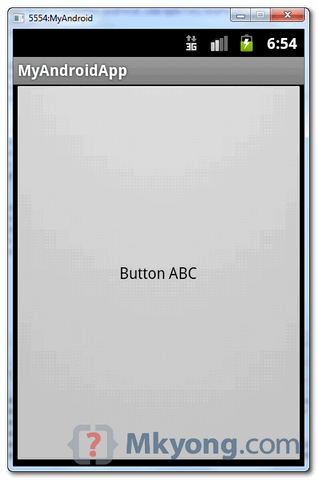
Change the both “layout_width” and “layout_height” to “fill_parent“, the button will display as big as the whole device screen, it just fill in the entire screen space.
<?xml version="1.0" encoding="utf-8"?>
<RelativeLayout xmlns:android="http://schemas.android.com/apk/res/android"
    android:layout_width="fill_parent"
    android:layout_height="fill_parent" >

    <Button
        android:id="@+id/btnButton1"
        android:layout_width="fill_parent"
        android:layout_height="fill_parent"
        android:text="Button ABC"/>

</RelativeLayout>
Actually, you can specifying an exact width and height, but it’s not recommended, due to Android variety of devices screen size. You just do not know what size of Android device is running your fantasy application.

I searched a lot, but still I’d not cleared,
But at last in here I understood completely & clearly.
Thanks
great…… its real concept …. thanks…!!!
Thank you for sharing the Demos for wrap_content vs fill_parent
????
It”s usefull my carrier, Thank uuuuuuuuu………
You are the MAN! 🙂
Thanks, it’s understandable for me.
It’s very easily understandable …Thank you
great tutorial. thanks a lot..
hope more tutorial will come
Thank you very much
Really simple explanation. I was able to understand very clearly. Thank you
super demonstration , i like very much thanks a lot and very useful for android beginners..
Simple and to the point. Well done
Thank you alot….
I love your demonstration.. Admirable.. I’m unable to install android SDK in my windows 7.. I have already installed JDK, Eclipse helios.. Can you suggest me??
Nice Post ….
Very usefull
Thanks a lot for this tutorials. I just started learning Java and Android programming and you examples are very good !!!!
Very nice website sir,i got many useful information from your site.
@Nguyen Thang: Relative means we can fix the labels any where , but linear means its fixed by giving value by us
Good Tutorials! I`m student and i prepare for ma studies form your website 🙂
thank you ^^
nice explanation
Thanks ….. nice sharing!
i have created android Calculator app in Eclipse. if i want to run that app i need eclipse must and should.
But i want to make that app run without eclipse in any system as a normal apps run .
just download and run then time app has to be run.
If any one knows help me Pls
The difference between linearlayout and relativelayout????
Very use full….well explained
… thank you sir