In this tutorial, we will enchance the previous AlertDialog example, to make it able to accept user input, just like a PromptDialog. More specific, this is a custom AlertDialog example.
See following steps :
- Create a prompt dialog layout (XML file).
- Attach the prompt dialog layout to
AlertDialog.Builder. - Attach the
AlertDialog.BuildertoAlertDialog. - Done.
P.S This project is developed in Eclipse 3.7, and tested with Android 2.3.3.
You may interest to read this custom dialog example.
1 Android Layout Files
Two XML files, one for main screen, one for prompt dialog.
File : res/layout/main.xml
<?xml version="1.0" encoding="utf-8"?>
<LinearLayout xmlns:android="http://schemas.android.com/apk/res/android"
    android:layout_width="fill_parent"
    android:layout_height="fill_parent"
    android:orientation="vertical" >

    <Button
        android:id="@+id/buttonPrompt"
        android:layout_width="wrap_content"
        android:layout_height="wrap_content"
        android:text="Show Prompt Dialog" />

    <EditText
        android:id="@+id/editTextResult"
        android:layout_width="match_parent"
        android:layout_height="wrap_content" >

    </EditText>

</LinearLayout>
File : res/layout/prompts.xml
<?xml version="1.0" encoding="utf-8"?>
<LinearLayout xmlns:android="http://schemas.android.com/apk/res/android"
    android:id="@+id/layout_root"
    android:layout_width="fill_parent"
    android:layout_height="fill_parent"
    android:orientation="vertical"
    android:padding="10dp" >

    <TextView
        android:id="@+id/textView1"
        android:layout_width="wrap_content"
        android:layout_height="wrap_content"
        android:text="Type Your Message : "
        android:textAppearance="?android:attr/textAppearanceLarge" />

    <EditText
        android:id="@+id/editTextDialogUserInput"
        android:layout_width="match_parent"
        android:layout_height="wrap_content" >

        <requestFocus />

    </EditText>

</LinearLayout>
2. Activity
Read the comment and demo in next step, it should be self-explorary.
File : MainActivity.java
package com.mkyong.android;

import android.app.Activity;
import android.app.AlertDialog;
import android.content.Context;
import android.content.DialogInterface;
import android.os.Bundle;
import android.view.LayoutInflater;
import android.view.View;
import android.view.View.OnClickListener;
import android.widget.Button;
import android.widget.EditText;

public class MainActivity extends Activity {

	final Context context = this;
	private Button button;
	private EditText result;

	public void onCreate(Bundle savedInstanceState) {

		super.onCreate(savedInstanceState);
		setContentView(R.layout.main);

		// components from main.xml
		button = (Button) findViewById(R.id.buttonPrompt);
		result = (EditText) findViewById(R.id.editTextResult);

		// add button listener
		button.setOnClickListener(new OnClickListener() {

			@Override
			public void onClick(View arg0) {

				// get prompts.xml view
				LayoutInflater li = LayoutInflater.from(context);
				View promptsView = li.inflate(R.layout.prompts, null);

				AlertDialog.Builder alertDialogBuilder = new AlertDialog.Builder(
						context);

				// set prompts.xml to alertdialog builder
				alertDialogBuilder.setView(promptsView);

				final EditText userInput = (EditText) promptsView
						.findViewById(R.id.editTextDialogUserInput);

				// set dialog message
				alertDialogBuilder
					.setCancelable(false)
					.setPositiveButton("OK",
					  new DialogInterface.OnClickListener() {
					    public void onClick(DialogInterface dialog,int id) {
						// get user input and set it to result
						// edit text
						result.setText(userInput.getText());
					    }
					  })
					.setNegativeButton("Cancel",
					  new DialogInterface.OnClickListener() {
					    public void onClick(DialogInterface dialog,int id) {
						dialog.cancel();
					    }
					  });

				// create alert dialog
				AlertDialog alertDialog = alertDialogBuilder.create();

				// show it
				alertDialog.show();

			}
		});
	}
}
3. Demo
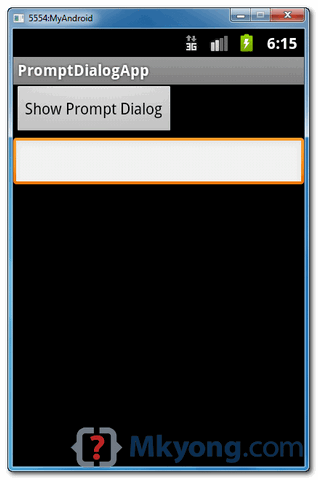
Start it, the “main.xml” layout is display a button and edittext (result).
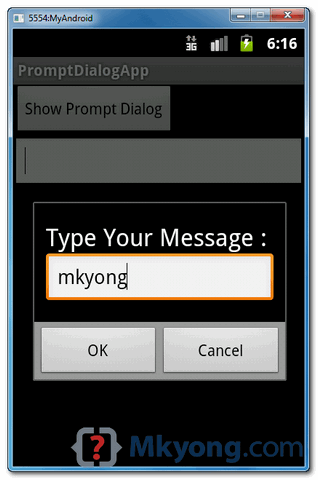
Click on the button, display a prompt dialog “prompts.xml” layout, type message “mkyong“, and click on the “OK” button.
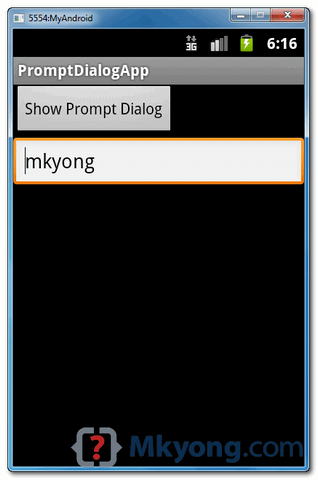
User input “mkyong” will pass to the “main.xml” layout, edittext (result), and display it.

This really helps me. Thank you..
Great code Thank you so much
very good highly help full,thanks a lot
how to use this in adapter?
Thank You So Much.
thanks
Your code is working ok under such simple and unlikely situations.
But what do I have to do if (in more complicated and realistic situations) I need to know the answer of the user to continue for instance “continue yes / no”. The .show() doesn’t wait, the code after it is executed before the dialog shows and the user answers.
Worked. Thank you.
I understood everything but i have one question. How can i disable the “OK” Button if there is nothing in the userInput?
nice article !!
thank you for the tutorial
Nice tutorial
concise and to the point as usual. great work
sir please show us the advance coding for android
Thank you very much for help, You make my day.
NICE share bro, your article help me to solve problem i got when handling pop up with input dialog 😀
Thanks for the articles. I’ve found a lot of interesting and useful things about android here!
great tutorial,like the previous ones.
thanks a lot.
Thank you sir, this post help me alot 😀
Thank you very much for all of these awesome tutorials… They have helped me very much.. Keep up this awesome work..
Great demo – thanks for posting
Hey there would you mind letting me know
which web host you’re working with? I’ve loaded your blog in 3 different browsers and I must say
this blog loads a lot faster then most. Can you recommend a
good hosting provider at a fair price? Many thanks, I appreciate it!
Thank you very much.. Simple and understandable.. Suits for all beginners
Can you please explain how can i get java to read an XML file, also how can i make the program to prompt user for files from XML and display them after?? I would be really thankful if you/anyone could help me??
FINALLY! Unlike so many sites with assuemed knowledge tutorials, this one has it down for anyone to try! THANK YOU!!
really thanks it’s helped
Thanks, reading values from inflated custom layout can be a bit tricky..if you try to use findViewById without referencing to the inflated view.
I keep coming here to copy codes for my Android project. Today, I just want to say Thank You.
Very great tutorial … can u plz give the example of custom dialog with “textview” and
“edittext” and a “Button” something should be happen when udser clicks on the button
hii how to runtime set edittext or textview value from sting in this promptview dialog
Example :
final EditText editusername = (EditText) promptsView.findViewById(R.id.editusername);
editusername.settext(username);
when i set like this it gives me error
06-11 08:47:40.242: E/AndroidRuntime(22247): FATAL EXCEPTION: main
06-11 08:47:40.242: E/AndroidRuntime(22247): java.lang.NullPointerException
06-11 08:47:40.242: E/AndroidRuntime(22247): at com.montor.werbungstudio.HomeActivityNew$3.onClick(HomeActivityNew.java:498)
06-11 08:47:40.242: E/AndroidRuntime(22247): at android.view.View.performClick(View.java:4274)
06-11 08:47:40.242: E/AndroidRuntime(22247): at android.view.View$PerformClick.run(View.java:17357)
06-11 08:47:40.242: E/AndroidRuntime(22247): at android.os.Handler.handleCallback(Handler.java:615)
06-11 08:47:40.242: E/AndroidRuntime(22247): at android.os.Handler.dispatchMessage(Handler.java:92)
06-11 08:47:40.242: E/AndroidRuntime(22247): at android.os.Looper.loop(Looper.java:137)
06-11 08:47:40.242: E/AndroidRuntime(22247): at android.app.ActivityThread.main(ActivityThread.java:4949)
06-11 08:47:40.242: E/AndroidRuntime(22247): at java.lang.reflect.Method.invokeNative(Native Method)
06-11 08:47:40.242: E/AndroidRuntime(22247): at java.lang.reflect.Method.invoke(Method.java:511)
06-11 08:47:40.242: E/AndroidRuntime(22247): at com.android.internal.os.ZygoteInit$MethodAndArgsCaller.run(ZygoteInit.java:1043)
06-11 08:47:40.242: E/AndroidRuntime(22247): at com.android.internal.os.ZygoteInit.main(ZygoteInit.java:810)
06-11 08:47:40.242: E/AndroidRuntime(22247): at dalvik.system.NativeStart.main(Native Method)
Hi Have u solved this issue…
If yes,please let me know how u fixed it…??
Thanks in advance….
final TextView textuser=(TextView)promptsView.findViewById(R.id.textuser);
final EditText editpassword = (EditText) promptsView.findViewById(R.id.editpassword);
String currentuser=”E-Mail: “+susername;
textuser.setText(currentuser);
share your code here if it is not working