In this tutorial, we show you how to display an alert box in Android. See flowing Steps :
- First, use the
AlertDialog.Builderto create the alert box interface, like title, message to display, buttons, and button onclick function - Later attach above builder to
AlertDialogand display it. - Done.
P.S This project is developed in Eclipse 3.7, and tested with Android 2.3.3.
1 Android Layout Files
Simpel layout file, display a button on screen.
File : res/layout/main.xml
<?xml version="1.0" encoding="utf-8"?>
<LinearLayout xmlns:android="http://schemas.android.com/apk/res/android"
    android:layout_width="fill_parent"
    android:layout_height="fill_parent"
    android:orientation="vertical" >

    <Button
        android:id="@+id/buttonAlert"
        android:layout_width="wrap_content"
        android:layout_height="wrap_content"
        android:text="Show Alert Box" />

</LinearLayout>
2. Activity
When user click on this button, display the alert box, with your pre-defined alert dialog interface.
File : MainActivity.java
package com.mkyong.android;

import android.app.Activity;
import android.app.AlertDialog;
import android.content.Context;
import android.content.DialogInterface;
import android.os.Bundle;
import android.view.View;
import android.view.View.OnClickListener;
import android.widget.Button;

public class MainActivity extends Activity {

	final Context context = this;
	private Button button;

	public void onCreate(Bundle savedInstanceState) {

		super.onCreate(savedInstanceState);
		setContentView(R.layout.main);

		button = (Button) findViewById(R.id.buttonAlert);

		// add button listener
		button.setOnClickListener(new OnClickListener() {

		@Override
		public void onClick(View arg0) {

			AlertDialog.Builder alertDialogBuilder = new AlertDialog.Builder(
				context);

			// set title
			alertDialogBuilder.setTitle("Your Title");

			// set dialog message
			alertDialogBuilder
				.setMessage("Click yes to exit!")
				.setCancelable(false)
				.setPositiveButton("Yes",new DialogInterface.OnClickListener() {
					public void onClick(DialogInterface dialog,int id) {
						// if this button is clicked, close
						// current activity
						MainActivity.this.finish();
					}
				  })
				.setNegativeButton("No",new DialogInterface.OnClickListener() {
					public void onClick(DialogInterface dialog,int id) {
						// if this button is clicked, just close
						// the dialog box and do nothing
						dialog.cancel();
					}
				});

				// create alert dialog
				AlertDialog alertDialog = alertDialogBuilder.create();

				// show it
				alertDialog.show();
			}
		});
	}
}
3. Demo
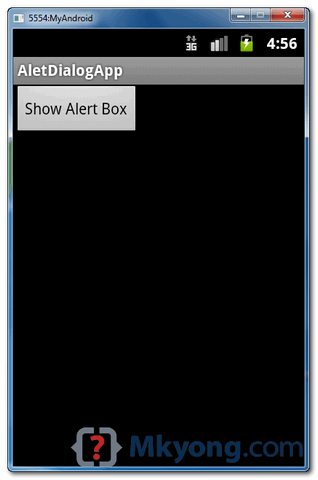
Start it, display a button.
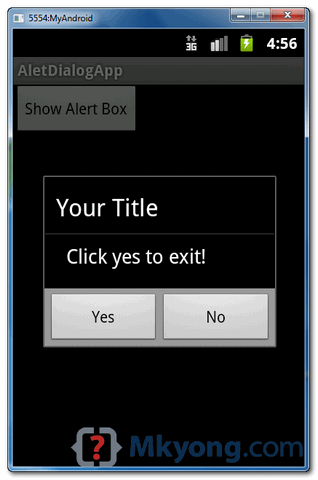
When button is clicked, display the alert box
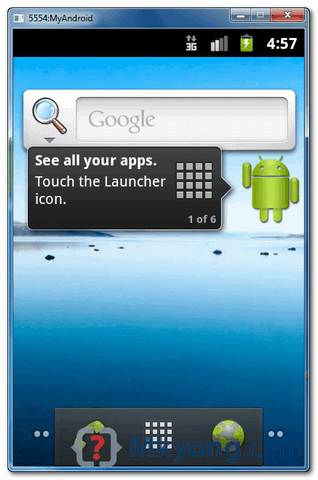
If “Yes” button is clicked, close the activity and return back to your Android main screen.
Download Source Code
Download it – Android-Alert-Dialogl-Example.zip (16 KB)

Thanks working this code sir, thanks a lot sir.. ??
If i want to display the the alert dialog again i have a user/password login alert box and if authentication fails then display it again
What is the question? Just do it.
Superb..Sir Thanx lot Today is my first Day with Android and i learnt a lot…
Hi… I have been trying to edit some of the strings in my apk file, since I want to add some modified info in the app. But I am not able to edit them. Even if I make changes in strings.xml, there are certain errors that do not recompile my file. What am I suppose to do? it’s my project work and no one could help me around, please tell me how to edit these strings??
Thanks mate, very concise.
Thanks a ton 🙂
Thank u very much
Thank You , Thank You Very Much Teacher,,,,,,,,,,,,,,
Thanks a lot, tutorial is great!
thanks for this great help
finally i can finish this project 🙂
Very well done. Thank you for taking the time to do this.
Thanks a lot, that helped me!
PositiveButton has to be Yes and NegativeButton has to be no
hi , sir why u not add Search box in your site for searching. (custom search box)?? it’s good way for any thing serach for related your content
Is it possible to have a alert dialog shown up on top of the Native Android Phone app when a call is in progress? If yes can you please guide me how? Thanks in advance 🙂
Thanks
Easy and quick… Thank you
Thanks! This really helped me out =]
thanks a lot 🙂
Thanks for giving us a simple and easy to understand example. But if you’re looking for more Android AlertDialog example, take a look at this http://www.codeofaninja.com/2011/07/android-alertdialog-example.html
Hi, I notice that you create the AlertDialog directly in the main activity. Is this the normal way to go. Because in a way I think creating too many things in the main activity will clutter it. Should it be created in XMLs instead? Hope you understand what I mean.
thank you, it’s really helpful
Nice Work..Thanks Alot for Saving my time..
How to use intent in alert dialog box?
LOL you’re a faggot, cunt
Thank you so much. It helps a lot. God Bless you
This is working perfectly. But I have one question. Developer.android.com says alertDialogs can work in API>11. so how is this working in Android 2.3.3?
hello , there seems to be another out of the world problem with me.
-Every time i run the application it gets compiled up nicely and launches the application but as soon as i hit the “button” on app it says the application has stopped unfortunately.
-This kinda things happen with my other applications also sometime even though there’s no error neither any kind of warning in the project.
I’ll b e looking forward for your help.
Hi, i think that i saw you visited my weblog so i came to _return the favor_.
I’m attempting to find things to improve my website!I suppose its ok to use some of your ideas!!
Thanks for the tips!
Cheers!
Very good code. May I have your mail id to contact my queries
Thank you so much for this tutorial! It was as clear as I could hope for, and now I can make alerts!
Thank you VeRy much,
but can i make buttons vertically with this code??
i make it with this code,
——————————————————————————-
Context context = this;
Dialog dialog = new Dialog(context);
dialog.setContentView(R.layout.context_layout2);
dialog.show();
———————————————————————————
but,
how can i use setOnClickListener on each of the buttons?
you can inflate the view first before adding it to the AlertDialog. in between that, you can add listeners there.
Thank you, it was really helpful.
Hi,
I’d like to override some methods of AlertDialog Class, therefore I Extend the AlertDialog Class:
instead of mkyong’s code:
Extended class:
public class MyAlertDialog extends AlertDialog {

		public MyAlertDialog (Context context) {
			super (context);
			Log.i(TAG,"MyAlertDialog constructor 1");

		}

		public MyAlertDialog (Context context,int theme) {
			super (context,theme);
			Log.i(TAG,"MyAlertDialog constructor 2");

		}

		public MyAlertDialog (Context context, boolean cancelable, DialogInterface.OnCancelListener cancelListener) {
			super (context,cancelable,cancelListener);
		}

	}
When I run the app, I get a runtime error (What is wrong?):
02-09 02:17:35.709: W/dalvikvm(20492): threadid=1: thread exiting with uncaught exception (group=0x40018578)
02-09 02:17:35.709: E/AndroidRuntime(20492): FATAL EXCEPTION: main
02-09 02:17:35.709: E/AndroidRuntime(20492): java.lang.ClassCastException: android.app.AlertDialog
02-09 02:17:35.709: E/AndroidRuntime(20492): at com.example.filepicker3.FilePickerActivity.showFileDetailsDialogAlarm(FilePickerActivity.java:336)
02-09 02:17:35.709: E/AndroidRuntime(20492): at com.example.filepicker3.FilePickerActivity.onItemLongClick(FilePickerActivity.java:261)
02-09 02:17:35.709: E/AndroidRuntime(20492): at android.widget.AbsListView.performLongPress(AbsListView.java:1975)
02-09 02:17:35.709: E/AndroidRuntime(20492): at android.widget.AbsListView.access$600(AbsListView.java:74)
02-09 02:17:35.709: E/AndroidRuntime(20492): at android.widget.AbsListView$CheckForLongPress.run(AbsListView.java:1933)
02-09 02:17:35.709: E/AndroidRuntime(20492): at android.os.Handler.handleCallback(Handler.java:587)
02-09 02:17:35.709: E/AndroidRuntime(20492): at android.os.Handler.dispatchMessage(Handler.java:92)
02-09 02:17:35.709: E/AndroidRuntime(20492): at android.os.Looper.loop(Looper.java:123)
02-09 02:17:35.709: E/AndroidRuntime(20492): at android.app.ActivityThread.main(ActivityThread.java:3687)
02-09 02:17:35.709: E/AndroidRuntime(20492): at java.lang.reflect.Method.invokeNative(Native Method)
02-09 02:17:35.709: E/AndroidRuntime(20492): at java.lang.reflect.Method.invoke(Method.java:507)
02-09 02:17:35.709: E/AndroidRuntime(20492): at com.android.internal.os.ZygoteInit$MethodAndArgsCaller.run(ZygoteInit.java:867)
02-09 02:17:35.709: E/AndroidRuntime(20492): at com.android.internal.os.ZygoteInit.main(ZygoteInit.java:625)
02-09 02:17:35.709: E/AndroidRuntime(20492): at dalvik.system.NativeStart.main(Native Method)
The return object of
alertDialogBuilder.create();
is an AlertDialog object. An instance of AlertDialog can be cast to subclasses of AlertDialog. It can however be cast down to any class AlertDialog extends. It’s like saying a generic Object instance can be cast to anything. Essentially your approach is impossible. You’d have to make your own builder whose return is an instance of your class. Or work directly with methods provided to AlertDialog (and it’s subclasses). I suggest you do it mkyong’s way.
Thank you for the information, it really helped a lot.
Thank you, it was really helpful.
nice tutorails..this code help me a lot….
HI Yong,
This example looks very simple. My question is is this enough to run the program. Here is another example which has more codes for writing the dialog box. Anyway, thank you for the cleaner explanation.
http://techbreaths.com/2013/01/dialogs-android/
Great Post.It really got me out of a fix.Thanks
I cant seem to run the application, always appear a error in console
[2012-12-07 21:12:07 – MainActivity] ——————————
[2012-12-07 21:12:07 – MainActivity] Android Launch!
[2012-12-07 21:12:07 – MainActivity] adb is running normally.
[2012-12-07 21:12:07 – MainActivity] Performing com.mkyong.android.MainActivity activity launch
[2012-12-07 21:12:07 – MainActivity] Automatic Target Mode: launching new emulator with compatible AVD ‘JairoGalaxyNexus’
[2012-12-07 21:12:07 – MainActivity] Launching a new emulator with Virtual Device ‘JairoGalaxyNexus’
[2012-12-07 21:12:12 – Emulator] Failed to allocate memory: 8
[2012-12-07 21:12:12 – Emulator]
[2012-12-07 21:12:12 – Emulator] This application has requested the Runtime to terminate it in an unusual way.
[2012-12-07 21:12:12 – Emulator] Please contact the application’s support team for more information.
what Im I doing wrong?
great work! Thanks!!
Thanks for giving this peace of code .which is very useful for me.
Hello Yong Mook,
I have already seen that you have such a great experience in Android Development it is real pleasure to see that you help others with your tutorials!
Thank you!
Thanks Mkyong, your examples are always self explanatory.
Thanks for the tutorials. They are straight to the point and simple. I can come to your site and learn what I need to in a matter of seconds or minutes. Other sites drag stuff out too much. For this tut, they would have a page or two going on and on about a simple concept and making it much more complicated than it actually is.
Please keep up the great work! Thanks!!
hi. thanks for sharing this tutorial.it’s very understandable.i always find your site better than others in tutorials.keep up the good work 🙂
mkyong Thanks for sharing. This article is very useful for android dev.
Thanx mykong for posting such useful info. I also posted about dialog that cover everything about dialog in android.
Link
http://androidtrainningcenter.blogspot.in/2012/07/how-to-create-custom-and-default-alert.html
Thank you Yong Mook.
Hi,
Thanks for sharing this code, much appreciated.
It really helped me to get the dialog box working. My first try i forgot to define this variable, instead i used GetApplicationContext()
“final Context context = this;”
After adding “”final Context context = this;” in:
“AlertDialog.Builder alertDialogBuilder = new AlertDialog.Builder(context);”
The dialog box was working.
But can you explain why you need to define the variable contex = this; why does GetApplicationContext not work?
Thanks
Best
Christian
Thanks for sharing this awesome peace of code, I really appreciate this…
I desire to poop inside your hassole 😀 yeeee soooo muuuch poooooooop 😀