In Android, GridView let you arranges components in a two-dimensional scrolling grid. For detail attribute exaplanation, see GridView reference.
In this tutorial, we will show you 2 common GridView examples :
- Normal way, just display text in
GridViewlayout. - Create a custom adapter to display image and text in
GridViewlayout.
P.S This project is developed in Eclipse 3.7, and tested with Android 2.3.3.
1. Normal GridView example
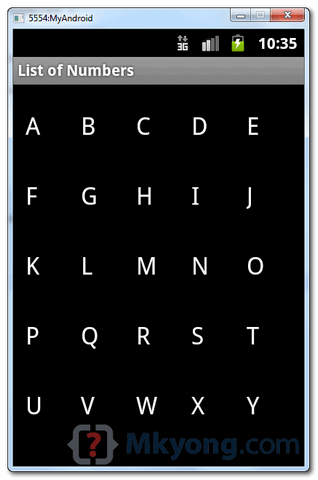
Display characters from A to Z in GridView layout. Quite simple, it should be sef-explanatory.
1.1 Android Layout file – res/layout/main.xml
<?xml version="1.0" encoding="utf-8"?>
<GridView xmlns:android="http://schemas.android.com/apk/res/android"
    android:id="@+id/gridView1"
    android:numColumns="auto_fit"
    android:gravity="center"
    android:columnWidth="50dp"
    android:stretchMode="columnWidth"
    android:layout_width="fill_parent"
    android:layout_height="fill_parent" >

</GridView>
1.2 Activity
package com.mkyong.android;

import android.app.Activity;
import android.os.Bundle;
import android.widget.AdapterView;
import android.widget.ArrayAdapter;
import android.widget.GridView;
import android.widget.TextView;
import android.widget.Toast;
import android.view.View;
import android.widget.AdapterView.OnItemClickListener;

public class GridViewActivity extends Activity {

	GridView gridView;

	static final String[] numbers = new String[] {
			"A", "B", "C", "D", "E",
			"F", "G", "H", "I", "J",
			"K", "L", "M", "N", "O",
			"P", "Q", "R", "S", "T",
			"U", "V", "W", "X", "Y", "Z"};

	@Override
	public void onCreate(Bundle savedInstanceState) {
		super.onCreate(savedInstanceState);

		setContentView(R.layout.main);

		gridView = (GridView) findViewById(R.id.gridView1);

		ArrayAdapter<String> adapter = new ArrayAdapter<String>(this,
				android.R.layout.simple_list_item_1, numbers);

		gridView.setAdapter(adapter);

		gridView.setOnItemClickListener(new OnItemClickListener() {
			public void onItemClick(AdapterView<?> parent, View v,
				int position, long id) {
			   Toast.makeText(getApplicationContext(),
				((TextView) v).getText(), Toast.LENGTH_SHORT).show();
			}
		});

	}

}
1.3 Demo
2. Custom Adapter example
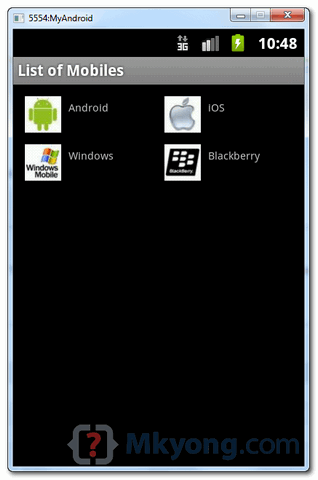
In this example, extend a BaseAdapter to display a group of image and text in GridView layout.
2.1 Two Android Layout files
File – res/layout/main.xml
<?xml version="1.0" encoding="utf-8"?>
<GridView xmlns:android="http://schemas.android.com/apk/res/android"
    android:id="@+id/gridView1"
    android:numColumns="auto_fit"
    android:gravity="center"
    android:columnWidth="100dp"
    android:stretchMode="columnWidth"
    android:layout_width="fill_parent"
    android:layout_height="fill_parent" >

</GridView>
File – res/layout/mobile.xml
<?xml version="1.0" encoding="utf-8"?>
<LinearLayout xmlns:android="http://schemas.android.com/apk/res/android"
    android:layout_width="wrap_content"
    android:layout_height="wrap_content"
    android:padding="5dp" >

    <ImageView
        android:id="@+id/grid_item_image"
        android:layout_width="50px"
        android:layout_height="50px"
        android:layout_marginRight="10px"
        android:src="@drawable/android_logo" >
    </ImageView>

    <TextView
        android:id="@+id/grid_item_label"
        android:layout_width="wrap_content"
        android:layout_height="wrap_content"
        android:text="@+id/label"
        android:layout_marginTop="5px"
        android:textSize="15px" >
    </TextView>

</LinearLayout>
2.2 Custom Adapter
package com.mkyong.android.adapter;

import android.content.Context;
import android.view.LayoutInflater;
import android.view.View;
import android.view.ViewGroup;
import android.widget.BaseAdapter;
import android.widget.ImageView;
import android.widget.TextView;

import com.mkyong.android.R;

public class ImageAdapter extends BaseAdapter {
	private Context context;
	private final String[] mobileValues;

	public ImageAdapter(Context context, String[] mobileValues) {
		this.context = context;
		this.mobileValues = mobileValues;
	}

	public View getView(int position, View convertView, ViewGroup parent) {

		LayoutInflater inflater = (LayoutInflater) context
			.getSystemService(Context.LAYOUT_INFLATER_SERVICE);

		View gridView;

		if (convertView == null) {

			gridView = new View(context);

			// get layout from mobile.xml
			gridView = inflater.inflate(R.layout.mobile, null);

			// set value into textview
			TextView textView = (TextView) gridView
					.findViewById(R.id.grid_item_label);
			textView.setText(mobileValues[position]);

			// set image based on selected text
			ImageView imageView = (ImageView) gridView
					.findViewById(R.id.grid_item_image);

			String mobile = mobileValues[position];

			if (mobile.equals("Windows")) {
				imageView.setImageResource(R.drawable.windows_logo);
			} else if (mobile.equals("iOS")) {
				imageView.setImageResource(R.drawable.ios_logo);
			} else if (mobile.equals("Blackberry")) {
				imageView.setImageResource(R.drawable.blackberry_logo);
			} else {
				imageView.setImageResource(R.drawable.android_logo);
			}

		} else {
			gridView = (View) convertView;
		}

		return gridView;
	}

	@Override
	public int getCount() {
		return mobileValues.length;
	}

	@Override
	public Object getItem(int position) {
		return null;
	}

	@Override
	public long getItemId(int position) {
		return 0;
	}

}
2.3 Activity
package com.mkyong.android;

import com.mkyong.android.adapter.ImageAdapter;
import android.app.Activity;
import android.os.Bundle;
import android.widget.AdapterView;
import android.widget.GridView;
import android.widget.TextView;
import android.widget.Toast;
import android.view.View;
import android.widget.AdapterView.OnItemClickListener;

public class GridViewActivity extends Activity {

	GridView gridView;

	static final String[] MOBILE_OS = new String[] {
		"Android", "iOS","Windows", "Blackberry" };

	@Override
	public void onCreate(Bundle savedInstanceState) {

		super.onCreate(savedInstanceState);
		setContentView(R.layout.main);

		gridView = (GridView) findViewById(R.id.gridView1);

		gridView.setAdapter(new ImageAdapter(this, MOBILE_OS));

		gridView.setOnItemClickListener(new OnItemClickListener() {
			public void onItemClick(AdapterView<?> parent, View v,
					int position, long id) {
				Toast.makeText(
				   getApplicationContext(),
				   ((TextView) v.findViewById(R.id.grid_item_label))
				   .getText(), Toast.LENGTH_SHORT).show();

			}
		});

	}

}
2.4 Demo
Download Source Code
Download it – Android-GridView-Example.zip (21 KB)

how to add listView to gridView .that is like lets assume your 1st app i.e”A” is gridView in this1’st ex i want to add “A” related content to that letter grid..can tell me.because i am facing this problem now
Should also note that this code in 2.2 won’t work properly if you have more grid elements than screen can show (i.e. if grid elements are recycled and convertView != null). You need to move the grid element value assignment (text/image) to after the if (convertView == null) condition so that recycled elements (when convertView != null) get their values appropriately set. Otherwise a fine example.
this is stupid, come on guys wake up, where do you live? on the cave?
No, I live in a house.
There is no electricity/internet supply in the local caves so I would not be able to power my computer or get an internet connection in the caves.
Why do you ask?
Are you a bit confused?
There’s no shame in asking for help if you’re a bit dumb, so go for it ask for help…
THANK YOU!!!! I was going crazy over an own implementation that continued to dump and I didnt know why. Already wanted to kick my Nexus into the trash can.. Your example works perfect. Many thanks again! Best regards, Alex
Hi Mark, in the normal example that display the letters. How do I get the specific content on the grid view. Like for example, if “C” is pressed, I want to set the “A” and “B” to bold and set a background color.
How to do it? Thanks.
Good examples. You do a great job and I have always had success following your examples.
great example sir, however you are making a FATAL mistake. In the 2nd GridView example, 2.2 Custom Adaptor class, you need to set the value of the TextView AFTER the if statement and BEFORE the return statement…
TextView textView = (TextView) gridView.findViewById(R.id.grid_item_label); textView.setText(mobileValues[position]);
No, you are dumb.
no both of you are dumb
The question is, who’s dumber?
dumb and dumber, who’s the dumbest of them all?
All of you are dumb dumber dumbest.
I want to load the images and ImageCaptions from the json response, how could it be done, any Idea?
Sorry, I couldn’t get this to compile
hello sir,
thanks for this android tutorial it really helps.
but you know i want to show this grid vertically can you explain me how i can do that thing with your code . ?
hello ,dear sir.
i am angel in china.
i checked gladly your sample code .
i thank for your help.
by the way , could you please tell me how to use grieView with big images? for example , 2080×2080 png images.
i will appreciate you to answer me at soon.
thanks.
from your friend ,angel
The thing is That can be possible but you might need to implement lazyloding as this kinds of images take a while to load.
Thanks a lot!it’s very helpful. 🙂
Please help me I want to create a news app which will send push notification to my user,when will i update some information in my RSS Feed on my blog
Where is the source for android.R.layout.simple_list_item_1 ?
Its not required to provide this in your project. It is from a set of layouts available in the android system.
oh my goodness this is the most stupid answer ever, thanks sir
In my app, i am saving the image path, of the photos my camera takes, into my sql database. But i dont know how i can retrieve it and put into the gridview. Can you please help? Thanks a lot!!! (‘:
http://www.Dollarpocketmoney.com/index.php?refcode=7014
how to use the array in integer datatype for android….
Thanks for this tutorial. JUst a question btw : what should i do if i want to build a grid with each pixel clickable?
Juste add in res/layout/main.xml : android:numColumns=”2″
I’m confused a long time about gridview is not appear but now I know a problem it’s because I’m not add mobileValues.length; in getCount() method
Think this comment is helpful for reslove this problem 🙂
Really nice work!
I had it a little change, so that I can give the constructor a parameter – the image array.
Hi,
Can you please tell me, If I want to add header in Gridview then, how I will add. I don’t want to use another listview.
DEMO is Wrong, that is not working
how to add flip animation on these griditems onscrolling?
Thank you for the example, but I can’t get it work. I tried the first one that uses the xml file main.xml and the GridViewActivity class. I just get an empty screen on my ADV emulator. I used eclipse to build this example. What could be wrong? I just copied your code exactly. Please help!
Thank you for the example, but I can’t get it work. I tried the first one that uses the xml file main.xml and the GridViewActivity class. I just get an empty screen on my ADV emulator. I used eclipse to build this example. What could be wrong? Please help!
You can remove the line: gridView = new View(context);
You are assigning to the gridView again the next line;
Hi mkyong,
thanks alot for your sample and learning
but I am programing in visual stadio in c# and all of that it works but in c# mono for android this line have errors:
gridView.setAdapter(adapter);
gridView.setOnItemClickListener(new OnItemClickListener() {
public void onItemClick(AdapterView parent, View v,
int position, long id) {
Toast.makeText(getApplicationContext(),
((TextView) v).getText(), Toast.LENGTH_SHORT).show();
}
please help me .
thanks
you must add the “override”
@Override
public void onItemClick(…
Hi mkyong- Thank a lot for this helpful Android GridView tutorial! I compiled a list of top resources I found on creating an Android Gridview Layout. I included your post. Check it out/ feel free to share. http://www.verious.com/board/Giancarlo-Leonio/creating-an-android-gridview-layout/ Hope other developers find this useful too. 🙂
Nice tutorial. How do you use time for memory game?
As a beginner, this site really help me so much ! Thank you !
Thanks for simple and clear example mkyong. Even this is also goo, have a look http://androidtechstuffs.blogspot.in/2013/02/display-images-in-gridview.html, may help..
how do i set a the setOnItemClickListener method in order to open a new activity
Thank you very much for such a good explained tutorial
helped a lot
Hi, I still find this tutorial very helpful, but “It doesn’t work!”. I mean I made a mistake somewhere. The tutorial itself is fully functional. I have a method which takes some strings from my SQL database:
    public String[] getDataBase() {
		String[] columns = new String[]{KEY_ONE, KEY_TWO, KEY_THREE};
		Cursor c = myDataBase.query(DB_TABLE, columns, null, null, null, null, null);
		String[] result = new String[3*c.getCount()];
		int i = 0;

		int iOne = c.getColumnIndex(KEY_ONE);
		int iTwo = c.getColumnIndex(KEY_TWO);
		int iThree = c.getColumnIndex(KEY_THREE);
			for (c.moveToFirst(); !c.isAfterLast(); c.moveToNext()){
				result[i] =  c.getString(iOne);
				result[i+1] =  c.getString(iTwo);
				result[i+2] =  c.getString(iThree);
				i=i+3;
			}
	return result;
	}
Then I take result array in another class
And put it into adapter
, where gv is existing gridView
When I run all the app just with
commented, everything works fine. I also tried to show data[1] + data[2] + data[3] in TextView and everything works fine, but when I uncomment
application “unfortunately stop working”.
Can You help me?
Thank You a lot. I am a total beginner and this helped me pretty much. Thanks
This helps me a lot..Thanks for the tutorial
Thank you very much for the tutorial. Greetings from Mexico.
Thanks very much for this easy to understand tutorial.
Hello
Thank you very much, great post!, source code worked very well.
Hi and thank you for your tutorials, I am learning programming and would love for you to give a tutorial on using GridView to show a “month view” calendar with the ability to display a image/icon on certain user selected days? Once again thank you I have found your tutorials very helpful and hope that you will create this tutorial.
jason
hi watch this
pavanhd.blogspot.in
owsum….
http://www.sportshunter.eu
I’m trying to learn Android programming, and I think that the GridView will help me with my first application.
I tried copying your “Normal Gridview Example” that should display the letters A thru Z, but after copying your main.xml code and Activity code into my project, the Eclipse notifications place a red-X on the line for:
public class GridViewActivity extends Activity {
The red-X description says:
The public type GridViewActivity must be defined in its own file.
The name of the file that the Activity code is in is called “GridviewActivity.java”.
Do you know what I’m doing wrong?
Yes, it should be called GridViewActiity (notice the V in uppercase…)
Hi exelent tutorial but i am struggling in centering the grid view horizontally, can you provide some tips? thanks
i want that when i click on string array value mean text so it goes to next activity please help me
i want when i click on string array element means text so it goes to next activity.is it possible please help me
thank a lot
I want to set a background to the rows of the grid, is it possible?
May you guide how I can do it?
Thanks
Thank you. Lucid and simple as always.
can you please tell me,how to modify your activity class and imageadapter for getting images+title text from remote server database?
Muchas gracias por el tutorial, me ha sido de ayuda!
Thanks for the tutorial! =D
How to get the name of selected item into string rather then using
Toast.makeText(getApplicationContext(),
((TextView) v.findViewById(R.id.grid_item_label))
.getText(), Toast.LENGTH_SHORT).show();
i want to store the result in 1 string
..
Thank You