In Android, you can use “android.widget.DatePicker” class to render a date picker component to select day, month and year in a pre-defined user interface.
In this tutorial, we show you how to render date picker component in current page via android.widget.DatePicker, and also in dialog box via android.app.DatePickerDialog. In addition, we also show you how to set a date in date picker component.
P.S This project is developed in Eclipse 3.7, and tested with Android 2.3.3.
1. DatePicker
Open “res/layout/main.xml” file, add date picker, label and button for demonstration.
File : res/layout/main.xml
<?xml version="1.0" encoding="utf-8"?>
<LinearLayout xmlns:android="http://schemas.android.com/apk/res/android"
    android:layout_width="fill_parent"
    android:layout_height="fill_parent"
    android:orientation="vertical" >

    <Button
        android:id="@+id/btnChangeDate"
        android:layout_width="wrap_content"
        android:layout_height="wrap_content"
        android:text="Change Date" />

    <TextView
        android:id="@+id/lblDate"
        android:layout_width="wrap_content"
        android:layout_height="wrap_content"
        android:text="Current Date (M-D-YYYY): "
        android:textAppearance="?android:attr/textAppearanceLarge" />

    <TextView
        android:id="@+id/tvDate"
        android:layout_width="wrap_content"
        android:layout_height="wrap_content"
        android:text=""
        android:textAppearance="?android:attr/textAppearanceLarge" />

    <DatePicker
        android:id="@+id/dpResult"
        android:layout_width="wrap_content"
        android:layout_height="wrap_content" />

</LinearLayout>
P.S The “DatePickerDialog” is declare in code, not XML.
2. Code Code
Read the code’s comment, it should be self-explanatory.
File : MyAndroidAppActivity.java
package com.mkyong.android;

import java.util.Calendar;
import android.app.Activity;
import android.app.DatePickerDialog;
import android.app.Dialog;
import android.os.Bundle;
import android.view.View;
import android.view.View.OnClickListener;
import android.widget.Button;
import android.widget.DatePicker;
import android.widget.TextView;

public class MyAndroidAppActivity extends Activity {

	private TextView tvDisplayDate;
	private DatePicker dpResult;
	private Button btnChangeDate;

	private int year;
	private int month;
	private int day;

	static final int DATE_DIALOG_ID = 999;

	@Override
	public void onCreate(Bundle savedInstanceState) {
		super.onCreate(savedInstanceState);
		setContentView(R.layout.main);

		setCurrentDateOnView();
		addListenerOnButton();

	}

	// display current date
	public void setCurrentDateOnView() {

		tvDisplayDate = (TextView) findViewById(R.id.tvDate);
		dpResult = (DatePicker) findViewById(R.id.dpResult);

		final Calendar c = Calendar.getInstance();
		year = c.get(Calendar.YEAR);
		month = c.get(Calendar.MONTH);
		day = c.get(Calendar.DAY_OF_MONTH);

		// set current date into textview
		tvDisplayDate.setText(new StringBuilder()
			// Month is 0 based, just add 1
			.append(month + 1).append("-").append(day).append("-")
			.append(year).append(" "));

		// set current date into datepicker
		dpResult.init(year, month, day, null);

	}

	public void addListenerOnButton() {

		btnChangeDate = (Button) findViewById(R.id.btnChangeDate);

		btnChangeDate.setOnClickListener(new OnClickListener() {

			@Override
			public void onClick(View v) {

				showDialog(DATE_DIALOG_ID);

			}

		});

	}

	@Override
	protected Dialog onCreateDialog(int id) {
		switch (id) {
		case DATE_DIALOG_ID:
		   // set date picker as current date
		   return new DatePickerDialog(this, datePickerListener,
                         year, month,day);
		}
		return null;
	}

	private DatePickerDialog.OnDateSetListener datePickerListener
                = new DatePickerDialog.OnDateSetListener() {

		// when dialog box is closed, below method will be called.
		public void onDateSet(DatePicker view, int selectedYear,
				int selectedMonth, int selectedDay) {
			year = selectedYear;
			month = selectedMonth;
			day = selectedDay;

			// set selected date into textview
			tvDisplayDate.setText(new StringBuilder().append(month + 1)
			   .append("-").append(day).append("-").append(year)
			   .append(" "));

			// set selected date into datepicker also
			dpResult.init(year, month, day, null);

		}
	};

}
P.S The “DatePickerDialog” example above, is referenced from Google Android date picker example, with some minor change.
3. Demo
Run the application.
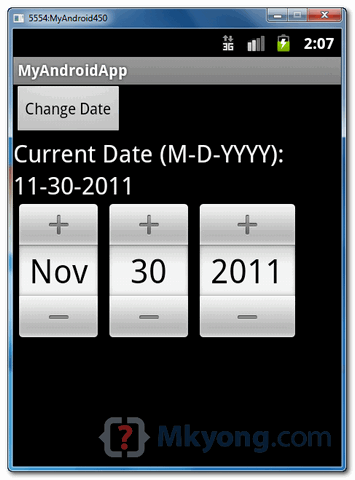
1. Result, “date picker” and “textview” are set to current date.
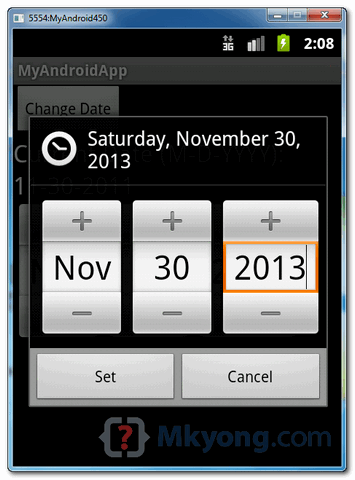
2. Click on the “Change Date” button, it will prompt a date picker component in a dialog box via DatePickerDialog.
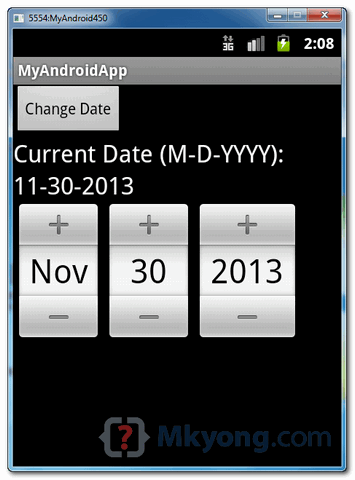
3. Both “date picker” and “textview” are updated with selected date.

how this date save to the database
How can I make this in android studio? thx
You can find an android studio date picker tutorial here http://www.ahotbrew.com/android-datepicker-example and it also let’s you download the source code.
Thanks a lot!
Works well in my android 2.3.6, very simple and clear with the screenshoots
Gracias miles. Thousands of thanks.
thank you very much. finally its worked.
Goof tutorial! Thanks!!
How can i set the date validation for 13 year. Means user enter date is always before 12 years.
if (count == 4) {
int Years_value = Integer.parseInt(Years.getText().toString());
if (Years_value 2017*//**//*) {
Years.setText(“yyyy”);
Toast.makeText(getApplicationContext(), “Enter Greater then 1900”, Toast.LENGTH_SHORT).show();
} else if (Years_value > 2017) {
Years.setText(“yyyy”);
Toast.makeText(getApplicationContext(), “Enter Less then 2017”, Toast.LENGTH_SHORT).show();
}
else if (Years_value>13)
{
Toast.makeText(getApplicationContext(), “Enter Less then 2017”, Toast.LENGTH_SHORT).show();
}
}
Nice tuto, thanks for your help
nice, thanks
Hey if you want to create custom date picker try this…http://hukum-android-lab.blogspot.in/2013/06/custom-date-picker-in-android.html…in this tutorial you can also push the limits 1900 – 2100 upto your own…:)
Thank you so much for such a nice example sir mm
Very useful, t5hx for the code
Perfect thanks… This http://www.compiletimeerror.com/2013/07/android-date-picker-example-android.html looks a bit different, may help.. Have a look…
how do i get the full month name from the datepicker …
its not possible directly..you need to use nested if or switch and assign a string based on the choice of month returned by DatePicker
Declare this on top:
public static final String[] MONTHS = {“Jan”, “Feb”, “Mar”, “Apr”, “May”, “Jun”, “Jul”, “Aug”, “Sep”, “Oct”, “Nov”, “Dec”};
After date selection access the month name like this: MONTHS[monthNumber]
You can find a similar, but more up-to-date example of the datepicker here:
http://www.ahotbrew.com/android-datepicker-example
static final int DATE_DIALOG_ID = 999;
WHAT IS MEAN BY 999…..
Hi Arun ,
DATE_DIALOG_ID = 999 is just an unique identification number which is passed to
onCreateDialog(int id) method to identify which dialog should be popped up
you can also refer this tutorial at Date Picker
please convert this code for fragment beause im not able run this in fragment………
very nice tutorial you can also check this one
http://pavanhd.blogspot.in/2013/04/android-datepicker-dialog-example.html
very explainatory
Hi
I am getting the below errors.
Can any 1 will help me?
Errors are “DatePickerDialog.OnDateSetListener cannot be resolved to a type” and
“DatePickerDialog.OnDateSetListener cannot be resolved to a type”
Thanks
CTRL+SHIFT+O
this should work………:-)
good example Thanks
Why would you want the (nonworking) datepicker to appear in your main window… *AND* then again (working model) in the alert dialog?
hi freind,I download your app then import it to my eclipse.I find a problem(it come up in other apps when I use DatePicker).The description is
“The following classes could not be found:
– CalendarView (Change to android.widget.CalendarView, Fix Build Path, Edit XML)
– DatePicker (Change to android.widget.DatePicker, Fix Build Path, Edit XML)
”
Can you help me? I google it but find nothing.
Change graphical view api in eclipse
I can’t use datepicker in system.
It shows an erroe message, what will be reason.
The following classes could not be found:
– CalendarView (Change to android.widget.CalendarView, Fix Build Path, Edit XML)
– DatePicker (Change to android.widget.DatePicker, Fix Build Path, Edit XML)
ok.I find the solution.the error occurs,beacuse the API doesn’t match.When I use the api lv17,The DatePicker Doesn’t work.So,I use the lower level API ,like level 10.the error is not exist.
hie..i like your appss..but i also tried to do the start date n end date n set the text in the text box with the same datepicker.please help me to do this..i am waiting for your reply…thank you..u send me on my emailid..again thanks a lot
Its a Nice one….
Nice tutorial, thanks
really nice example ,thanx!!!!!!!
Great Post.
+1 from my side.
Thank you very much for this excellent tutorial.
If i want to make an app in which like date picker i want to have slider in which instead of months i wanted to display a group of items eg. list of fruits..
For that what should i do…
Thanks in advance..
hello this is good in place of month value i want month name like “jan”,”feb”,”mar”…..any idea
But the datepick view takes a lot of space is there a way to open only dialog box without the datepick. so that when i click on some editText view, just the dialog box pops up and when i set the date in the dialog box it must show me the date in the editText view.
Really a nice post. Yes there is a way, in the main.xml file keep the Datepicker’s visibility as “invisible”. Rest all will work the same.
Hi Archie
your correct datepick view takes a lot of space , but the dialog will disable the background activity until the user select the date and about getting date in edittext it’s simple you just need to grab the selected date and set that in edittext view thats it
you can also refer this tutorial at Date Picker
nice one ……
can we use different gadgets instead of this?
where we can get?
Thank you very much for this excellent tutorial. This clear and the screenshots helped a lot.
Thanks a lot! 😀