In Android, you can use “android.widget.CheckBox” class to render a checkbox.
In this tutorial, we show you how to create 3 checkboxes in XML file, and demonstrates the use of listener to check the checkbox state – checked or unchecked.
P.S This project is developed in Eclipse 3.7, and tested with Android 2.3.3.
1. Custom String
Open “res/values/strings.xml” file, add some user-defined string.
File : res/values/strings.xml
<?xml version="1.0" encoding="utf-8"?>
<resources>
    <string name="hello">Hello World, MyAndroidAppActivity!</string>
    <string name="app_name">MyAndroidApp</string>
    <string name="chk_ios">IPhone</string>
    <string name="chk_android">Android</string>
    <string name="chk_windows">Windows Mobile</string>
    <string name="btn_display">Display</string>
</resources>
2. CheckBox
Open “res/layout/main.xml” file, add 3 “CheckBox” and a button, inside the LinearLayout.
File : res/layout/main.xml
<?xml version="1.0" encoding="utf-8"?>
<LinearLayout xmlns:android="http://schemas.android.com/apk/res/android"
    android:layout_width="fill_parent"
    android:layout_height="fill_parent"
    android:orientation="vertical" >

    <CheckBox
        android:id="@+id/chkIos"
        android:layout_width="wrap_content"
        android:layout_height="wrap_content"
        android:text="@string/chk_ios" />

    <CheckBox
        android:id="@+id/chkAndroid"
        android:layout_width="wrap_content"
        android:layout_height="wrap_content"
        android:text="@string/chk_android"
        android:checked="true" />

    <CheckBox
        android:id="@+id/chkWindows"
        android:layout_width="wrap_content"
        android:layout_height="wrap_content"
        android:text="@string/chk_windows" />

    <Button
        android:id="@+id/btnDisplay"
        android:layout_width="wrap_content"
        android:layout_height="wrap_content"
        android:text="@string/btn_display" />

</LinearLayout>
Put
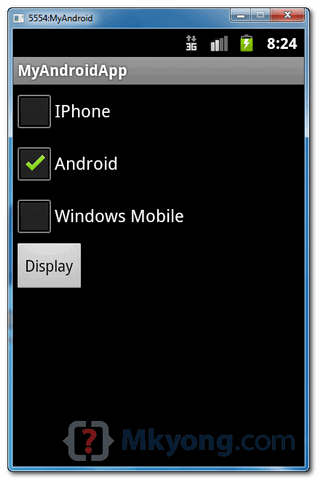
android:checked="true" inside checkbox element to make it checked bu default. In this case, “Android” option is checked by default.
3. Code Code
Attach listeners inside your activity “onCreate()” method, to monitor following events :
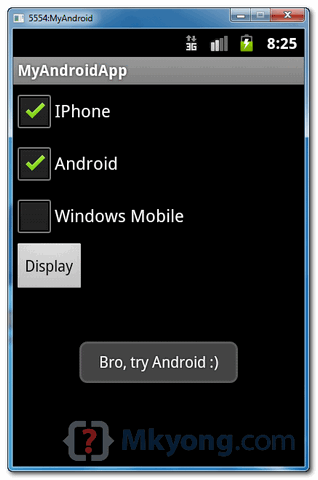
- If checkbox id : “chkIos” is checked, display a floating box with message “Bro, try Android”.
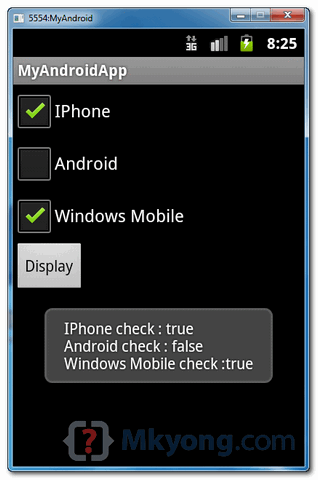
- If button is is clicked, display a floating box and display the checkbox states.
File : MyAndroidAppActivity.java
package com.mkyong.android;

import android.app.Activity;
import android.os.Bundle;
import android.view.View;
import android.view.View.OnClickListener;
import android.widget.Button;
import android.widget.CheckBox;
import android.widget.Toast;

public class MyAndroidAppActivity extends Activity {

  private CheckBox chkIos, chkAndroid, chkWindows;
  private Button btnDisplay;

  @Override
  public void onCreate(Bundle savedInstanceState) {
	super.onCreate(savedInstanceState);
	setContentView(R.layout.main);

	addListenerOnChkIos();
	addListenerOnButton();
  }

  public void addListenerOnChkIos() {

	chkIos = (CheckBox) findViewById(R.id.chkIos);

	chkIos.setOnClickListener(new OnClickListener() {

	  @Override
	  public void onClick(View v) {
                //is chkIos checked?
		if (((CheckBox) v).isChecked()) {
			Toast.makeText(MyAndroidAppActivity.this,
		 	   "Bro, try Android :)", Toast.LENGTH_LONG).show();
		}

	  }
	});

  }

  public void addListenerOnButton() {

	chkIos = (CheckBox) findViewById(R.id.chkIos);
	chkAndroid = (CheckBox) findViewById(R.id.chkAndroid);
	chkWindows = (CheckBox) findViewById(R.id.chkWindows);
	btnDisplay = (Button) findViewById(R.id.btnDisplay);

	btnDisplay.setOnClickListener(new OnClickListener() {

          //Run when button is clicked
	  @Override
	  public void onClick(View v) {

		StringBuffer result = new StringBuffer();
		result.append("IPhone check : ").append(chkIos.isChecked());
		result.append("\nAndroid check : ").append(chkAndroid.isChecked());
		result.append("\nWindows Mobile check :").append(chkWindows.isChecked());

		Toast.makeText(MyAndroidAppActivity.this, result.toString(),
				Toast.LENGTH_LONG).show();

	  }
	});

  }
}
4. Demo
Run the application.
1. Result :
2. If “IPhone” is checked :
3. Checked “IPhone” and “Windows Mobile”, later, click on the “display” button :

I had run this code. by the way I cannot find symbol variables: chkDriver, chkCarOwner, buttonDisplay. Please I wish to have your advice.
how to arrange password edittext and checkbox(hide/show)?
But how to check the widget programmaticaly? How to set text to appear on the left of the checkbox?
what is the syntax of radiobutton
good
sir how can i arrange check box in single row
By using linear layout orientation horizontal..
hi,is this possible without using xml (i.e. using java),because my reqirement is creating checkboxes dynamically
this is what I looking for. thanks from Indonesia 🙂
Thank you man, it helped me 🙂
Thank you man it helped me
i have problem with this one
chkIos = (CheckBox) findViewById(R.id.chkIos);
and of course
chkIos = (CheckBox) findViewById(R.id.chkIos);
chkAndroid = (CheckBox) findViewById(R.id.chkAndroid);
chkWindows = (CheckBox) findViewById(R.id.chkWindows);
btnDisplay = (Button) findViewById(R.id.btnDisplay);
error about “chkIos cannot be resolved or is not a field”
you did not mention the type of chklos. you have to write like CheckBox chklos=(CheckBox) findViewById(R.id.chkIos);
As a beginner I like this site. Easy to understand each topic in detail..
Learned lot from here…. Hats off to U…
Dear friend
Very Good tutorial and simple to understand.
Thank u
Latheef
Hi, I’m a software developer just like you. I just want to congratulate you for this fantastic work of delivering concrete and useful source code. I’m know that there is more of you that can be appreciated in your web pages. I don’t know if you are Christian and/or believe in The Lord Jesus Christ, but I will certainly include you in my prayers, as a Christian Catholic. God be with you, Lord Jesus Christ always protect you, and give you the strength to contribute more to the SW Developer Community with this kind of work. Thank you, and God bless you.
Just stop. You’re devaluing the word “developer” by preaching your beliefs. This page/post isn’t about religion so don’t bother mentioning it, you just look like a fool.
He doesn’t look like a fool. Let the guy thank Minyong any way he likes. I am not Catholic but am not offended in anyway. You’re just tearing people down instead of being tolerant of different ideas.
Oi kirig wag dito!
Very good site for freshers many thanks for MKYONG.
How can I check dynamic checkbox ?
Thanks for your examples for android! 😉
Frank (Germany)
This was a tad helpful…thanks mkyong 🙂