In Android, you can use “android.widget.RadioButton” class to render radio button, and those radio buttons are usually grouped by android.widget.RadioGroup. If RadioButtons are in group, when one RadioButton within a group is selected, all others are automatically deselected.
In this tutorial, we show you how to use XML to create two radio buttons, and grouped in a radio group. When button is clicked, display which radio button is selected.
P.S This project is developed in Eclipse 3.7, and tested with Android 2.3.3.
1. Custom String
Open “res/values/strings.xml” file, add some custom string for radio button.
File : res/values/strings.xml
<?xml version="1.0" encoding="utf-8"?>
<resources>
    <string name="hello">Hello World, MyAndroidAppActivity!</string>
    <string name="app_name">MyAndroidApp</string>
    <string name="radio_male">Male</string>
    <string name="radio_female">Female</string>
    <string name="btn_display">Display</string>
</resources>
2. RadioButton
Open “res/layout/main.xml” file, add “RadioGroup“, “RadioButton” and a button, inside the LinearLayout.
File : res/layout/main.xml
<?xml version="1.0" encoding="utf-8"?>
<LinearLayout xmlns:android="http://schemas.android.com/apk/res/android"
    android:layout_width="fill_parent"
    android:layout_height="fill_parent"
    android:orientation="vertical" >

    <RadioGroup
        android:id="@+id/radioSex"
        android:layout_width="wrap_content"
        android:layout_height="wrap_content" >

        <RadioButton
            android:id="@+id/radioMale"
            android:layout_width="wrap_content"
            android:layout_height="wrap_content"
            android:text="@string/radio_male"
            android:checked="true" />

        <RadioButton
            android:id="@+id/radioFemale"
            android:layout_width="wrap_content"
            android:layout_height="wrap_content"
            android:text="@string/radio_female" />

    </RadioGroup>

    <Button
        android:id="@+id/btnDisplay"
        android:layout_width="wrap_content"
        android:layout_height="wrap_content"
        android:text="@string/btn_display" />

</LinearLayout>
To make a radio button is selected by default, put
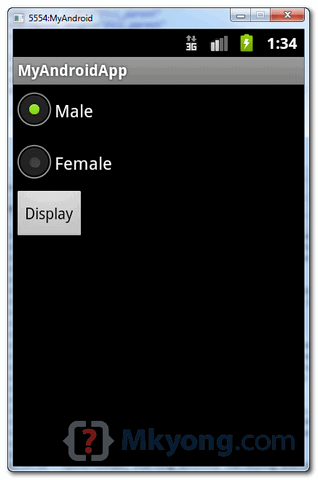
android:checked="true" within the RadioButton element. In this case, radio option “Male” is selected by default.
3. Code Code
Inside activity “onCreate()” method, attach a click listener on button.
File : MyAndroidAppActivity.java
package com.mkyong.android;

import android.app.Activity;
import android.os.Bundle;
import android.view.View;
import android.view.View.OnClickListener;
import android.widget.Button;
import android.widget.RadioButton;
import android.widget.RadioGroup;
import android.widget.Toast;

public class MyAndroidAppActivity extends Activity {

  private RadioGroup radioSexGroup;
  private RadioButton radioSexButton;
  private Button btnDisplay;

  @Override
  public void onCreate(Bundle savedInstanceState) {
	super.onCreate(savedInstanceState);
	setContentView(R.layout.main);

	addListenerOnButton();

  }

  public void addListenerOnButton() {

	radioSexGroup = (RadioGroup) findViewById(R.id.radioSex);
	btnDisplay = (Button) findViewById(R.id.btnDisplay);

	btnDisplay.setOnClickListener(new OnClickListener() {

		@Override
		public void onClick(View v) {

		        // get selected radio button from radioGroup
			int selectedId = radioSexGroup.getCheckedRadioButtonId();

			// find the radiobutton by returned id
		        radioSexButton = (RadioButton) findViewById(selectedId);

			Toast.makeText(MyAndroidAppActivity.this,
				radioSexButton.getText(), Toast.LENGTH_SHORT).show();

		}

	});

  }
}
4. Demo
Run the application.
1. Result, radio option “Male” is selected.
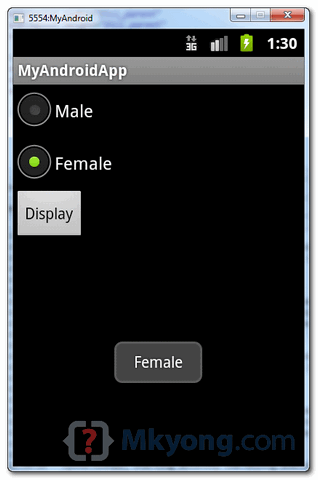
2. Select “Female” and click on the “display” button, the selected radio button value is displayed.

i always visit this site for help!. thanks for all the assistance i have gotten here.
nice
After searching all over Google, I finally found a solution. Thanks a lot.
Wonderful blog! I found it while surfing around on Yahoo News. Do you have any suggestions on how to get listed in Yahoo News? I’ve been trying for a while but I never seem to get there! Thanks edkfeebdagbdedbd
worked great
thank you very much
why we have to use addOnListener() in radiogroup program?
nice
how to add multiple texts to single radio button means suppose I want to add text below to male radio button … how to do it?
how to radio button input data into mysql database? help me sir..make this tutorial,please
HI,,,
I want to create android app, where app using radio button to show image in imageview, so, how do it???
thanks. useful
Hi
Very informative tutorials you have here, kudos.
Que: What if i want to open/start a new activity when a user picks/selects one of the radio buttons, for an instance i have a dialog with radio button options A,B,C,D and E whenever the user select option A it should open activity A or any other selected option.
How can i implement this
Regards and reply soon
Great example dear thanks!!!!!!!!!!!!!!
Thanks boss y are the best
Simply best, i got this after spending about 2 hours on other sites and atlast solved my issue here in just 3 minutes
Nice sample, very helpfull
this site ALWAYS helps me, thank you mkyong…..
sir just want to ask how can i make the radiobutton reveal an image of male and female
Just change the code to the code you want. It only needs some minor alterations
For example (this method executes every time you change the checked radio button)
radioSexGroup.setOnCheckedChangeListener(new OnCheckedChangeListener() {
@Override
public void onCheckedChanged(RadioGroup group, int checkedId) {
// TODO Auto-generated method stub
if(checkedId == R.id.radioMale){
// Show one picture (in an ImageView or something)
}else if(checkedId == R.id.radioFemale){
// Show other picture (in an ImageView or something)
}
}
});
Sir, i want to insert this radio button value to database.Can you plz just send me the code?Any help from your side will be appreciable..
good website…thnx
Thanks for the cool example.
Your Site is simply Superb!Thanks for sharing
sir, how if i want open a new layout activity after click the other radio buttons ?
the code please 🙂
thanks
sir, How to select Radio button without click on Display button?
android:checked=”true”
android:checked=”true”
sir, How to select radio button without click on Display button.
How can I call another activity from selected radio button ?
thanks
A good introductory post for RadioButtons.
Just one thing how can i use icons instead of text with radioButtons
Very clear tutorial, thanks for sharing it!
Just one thing…: radioGender sounds more professional than radioSex
Cheers!
very nice sir…..i like very much this tutorial.thank you sir
Thanks Sir.Could you help me to solve this problem.
The problem: 1.If i select 3 in Decks radio group the 15 in the cards radio group should be disabled. Users are not allowed to select 15 and 12 should be the default selected button.
For example,
DECKS O3 O4 O5
CARDS O12 O15
if 3 or 4 is selected
then 15 should be disabled
and 12 should be the default selected button
if 5 is selected
then 12 should be disabled
and 15 should be the default selected button
Good Job sir!
very useful
After selecting any one and clicking on ok than you can’t select the above one. Why it so ?
Thanks !
Nice and useful tutorial.
Thank you very much for the tutorial, it has been very helpful.
Now I’m trying to display the result in two different activities, one for each gender.
Lyd.
Hi
Very nice example
Thank-you
With regards
Latheef
Nice tutorial. can easily use the radio button…
Thanks for sharing….
As I was adding radio buttons run time, I was getting problems to get value for each radio button…..so this helped me for my project…:)