Java 21 is the latest Long-Term Support (LTS) release, recommended for most new projects. Oracle Java is the default for most enterprise environments, while Eclipse Temurin is popular in the open-source community or where licensing flexibility is required.
Table of contents
- 1. How to Install Oracle Java 21 on Windows
- 2. How to Install Eclipse Temurin Java 21 on Windows
- 3. Frequently Asked Questions (FAQ)
- 4. References
Technologies used:
- Oracle Java 21 LTS
- Eclipse Temurin Java 21 LTS
- Windows 10/11
1. How to Install Oracle Java 21 on Windows
1.1 Download Oracle Java
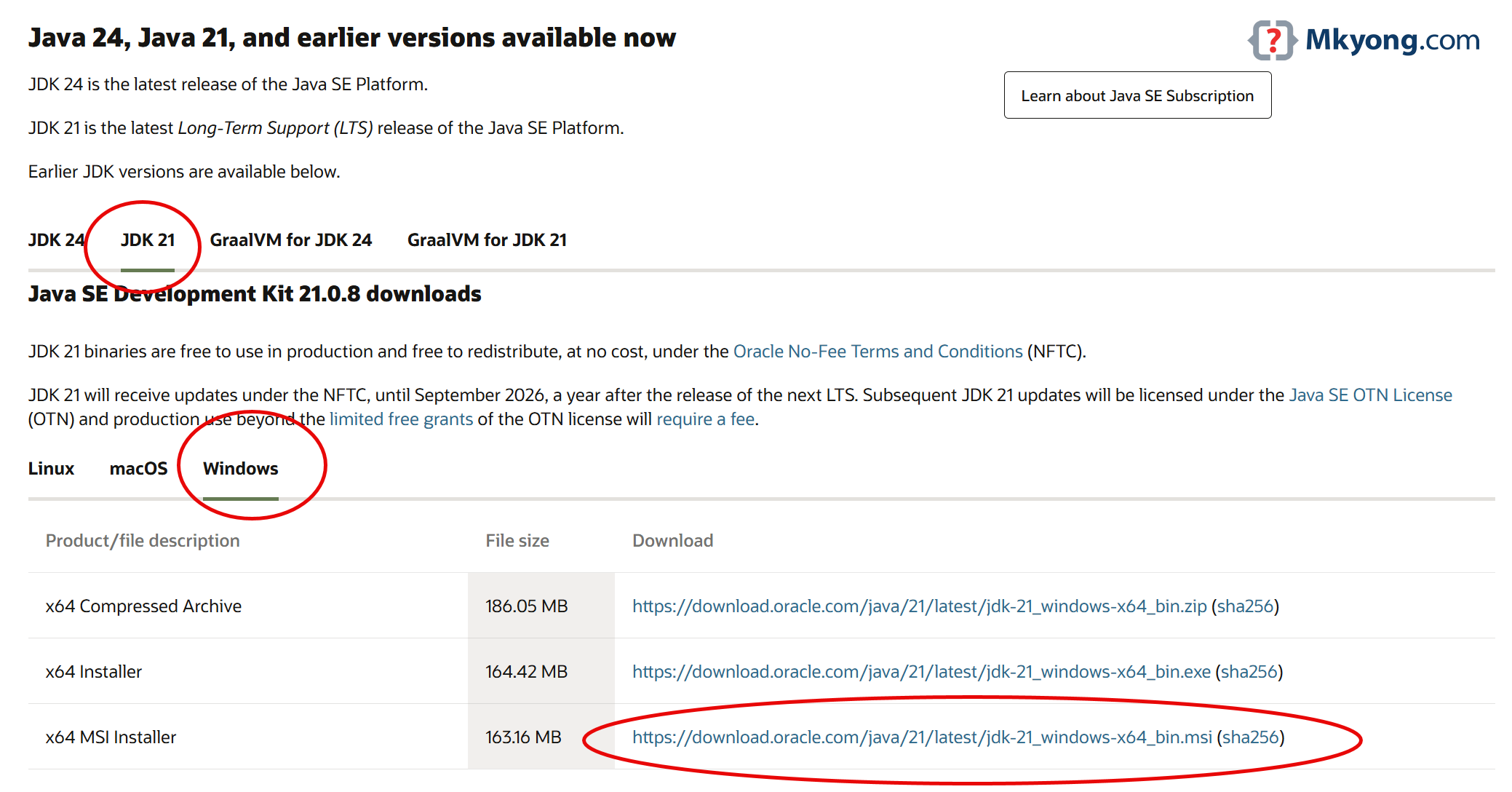
First, we visit the official Oracle Java Downloads page. We select Windows as our operating system and download the .msi installer.
1.2 Run the Oracle Java Installer
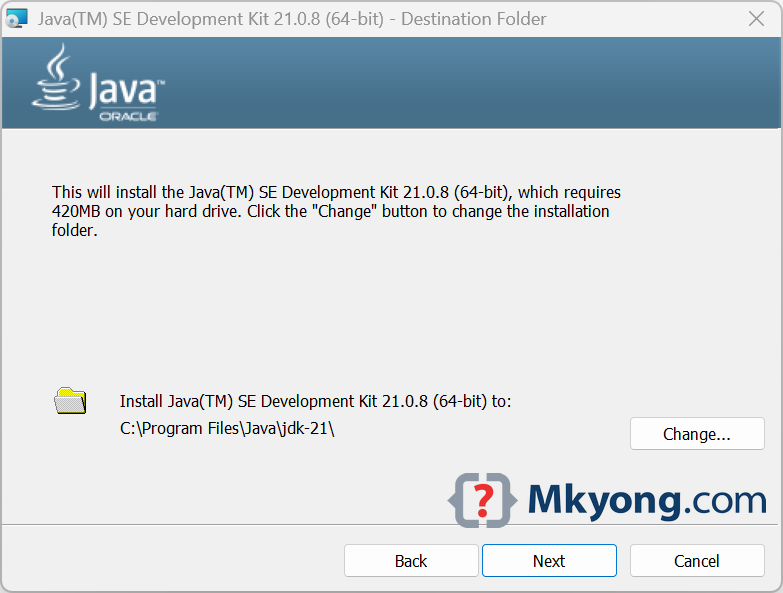
We double-click the downloaded .msi file. The installation wizard guides us through the process:
- Accept the license agreement.
- Choose or confirm the installation path (default is
C:\Program Files\Java\jdk-21). - Click "Install" and wait for the process to finish.
1.3 Verify Java Installation
To verify that Java was installed successfully, we open Command Prompt and run:
java -version
We should see output similar to:
java version "21.0.8" 2025-07-15 LTS
Java(TM) SE Runtime Environment (build 21.0.8+12-LTS-250)
Java HotSpot(TM) 64-Bit Server VM (build 21.0.8+12-LTS-250, mixed mode, sharing)
1.4 Set the JAVA_HOME Environment Variable
Setting the JAVA_HOME variable allows other software to detect our Java installation. Here’s how we do it:
- Right-click This PC > Properties > Advanced system settings.
- Click
Environment Variables. - Under
System variablesclick New:- Variable name:
JAVA_HOME - Variable value:
C:\Program Files\Java\jdk-21
- Variable name:
- Find the Path variable, click Edit, and add
%JAVA_HOME%\bin. - Click OK to save and restart the Command Prompt.
Note
For a detailed walkthrough, see: How to set JAVA_HOME on Windows
2. How to Install Eclipse Temurin Java 21 on Windows
Eclipse Temurin is a free, open-source build of OpenJDK and widely used in the Java community.
2.1 Download Eclipse Temurin JDK
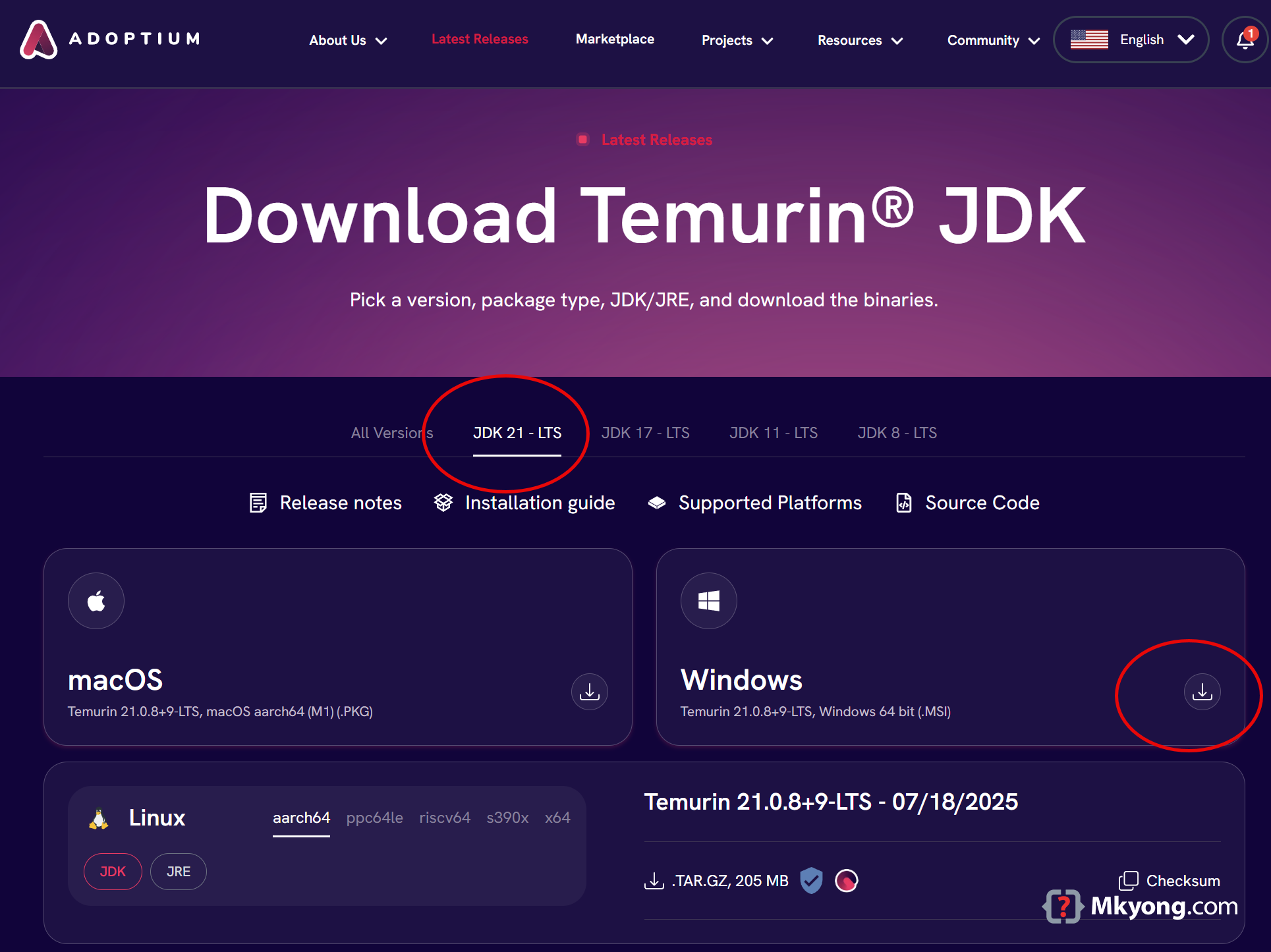
We visit the official Temurin JDK Release Page and download the Windows installer (.msi).
2.2 Run the Temurin Installer
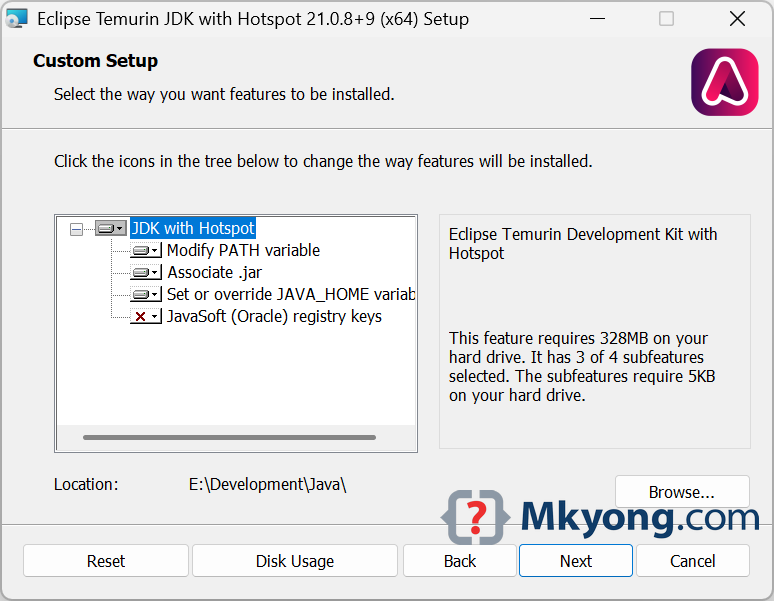
We double-click the downloaded file, follow the wizard, accept the license, and select the installation path. The installer typically sets the JAVA_HOME variable for us automatically. If prompted, we restart Windows.
2.3 Verify Temurin Java Installation
Open Command Prompt and run:
java -version
We should see output similar to:
openjdk version "21.0.8" 2025-07-15 LTS
OpenJDK Runtime Environment Temurin-21.0.8+9 (build 21.0.8+9-LTS)
OpenJDK 64-Bit Server VM Temurin-21.0.8+9 (build 21.0.8+9-LTS, mixed mode, sharing)
2.4 Check JAVA_HOME Environment Variable
The Temurin installer usually configures JAVA_HOME and updates the Path variable automatically. To verify:
- Open System Properties > Advanced > Environment Variables.
- Ensure the
JAVA_HOMEvariable points to the correct folder, for example:C:\Program Files\Eclipse Adoptium\jdk-21.0.8.9-hotspot\ - Make sure
%JAVA_HOME%\binis included in the Path.
Note
For a detailed walkthrough, see: How to set JAVA_HOME on Windows
3. Frequently Asked Questions (FAQ)
Q1: Do we need to uninstall old Java versions before installing Java 21?
It is recommended but not required. We can keep multiple versions, but make sure the JAVA_HOME and Path variables point to the desired version.
Q2: Is Oracle Java free for personal use?
Yes, Oracle Java is free for personal use. For commercial use, always check the official Oracle licensing page.

No comments yet. Be the first to leave a comment!