In Android, you can use “EditText” class to create an editable textbox to accept user input.
This tutorial show you how to create a textbox in XML file, and demonstrates the use of key listener to display message typed in the textbox.
P.S This project is developed in Eclipse, and tested with Android 2.3.3.
1. EditText
Open “res/layout/main.xml” file, add a “EditText” component.
File : res/layout/main.xml
<?xml version="1.0" encoding="utf-8"?>
<LinearLayout xmlns:android="http://schemas.android.com/apk/res/android"
    android:layout_width="fill_parent"
    android:layout_height="fill_parent"
    android:orientation="vertical" >

    <EditText
        android:id="@+id/editText"
        android:layout_width="match_parent"
        android:layout_height="wrap_content" >

        <requestFocus />

    </EditText>

</LinearLayout>
2. EditText Listener
Attach a key listener inside your activity “onCreate()” method, to monitor following events :
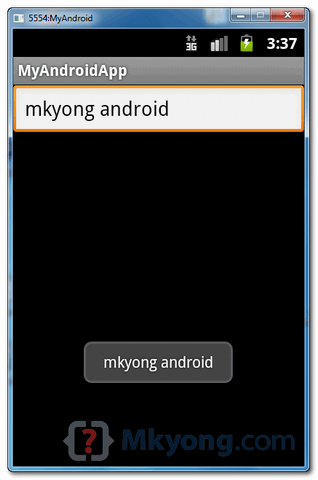
- If “enter” is pressed , display a floating box with the message typed in the “EditText” box.
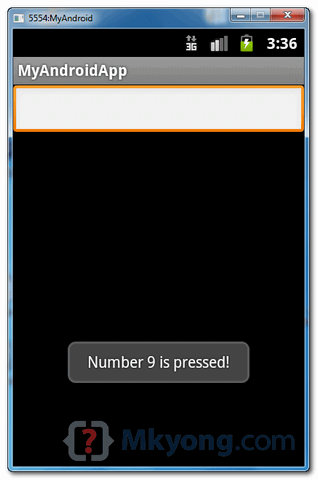
- If “Number 9” is pressed, display a floating box with message “Number 9 is pressed!”.
File : MyAndroidAppActivity.java
package com.mkyong.android;

import android.app.Activity;
import android.os.Bundle;
import android.view.KeyEvent;
import android.view.View;
import android.view.View.OnKeyListener;
import android.widget.EditText;
import android.widget.Toast;

public class MyAndroidAppActivity extends Activity {

 private EditText edittext;

 @Override
 public void onCreate(Bundle savedInstanceState) {
	super.onCreate(savedInstanceState);
	setContentView(R.layout.main);

	addKeyListener();
 }

 public void addKeyListener() {

	// get edittext component
	edittext = (EditText) findViewById(R.id.editText);

	// add a keylistener to keep track user input
	edittext.setOnKeyListener(new OnKeyListener() {
	public boolean onKey(View v, int keyCode, KeyEvent event) {

		// if keydown and "enter" is pressed
		if ((event.getAction() == KeyEvent.ACTION_DOWN)
			&& (keyCode == KeyEvent.KEYCODE_ENTER)) {

			// display a floating message
			Toast.makeText(MyAndroidAppActivity.this,
				edittext.getText(), Toast.LENGTH_LONG).show();
			return true;

		} else if ((event.getAction() == KeyEvent.ACTION_DOWN)
			&& (keyCode == KeyEvent.KEYCODE_9)) {

			// display a floating message
			Toast.makeText(MyAndroidAppActivity.this,
				"Number 9 is pressed!", Toast.LENGTH_LONG).show();
			return true;
		}

		return false;
	}
 });
}
}
3. Demo
Run the application.
1. Type something inside the textbox, and press on the “enter” key :
2. If key “Number 9” is pressed :
Download Source Code
Download it – Android-EditText-Example.zip (15 KB)

Saltyy bhaaii🙂💔
Who Is salty Bhai🙂
I think u Are Mine🫶🏻❤️
This is the best article💥
I got so much information from this post. this is basic and should be in our knowledge. thanks for sharing it with us. because we do not want to know about anything until we didn’t get its initial information.
Excellent work is done here. Happy to read this article. This is very useful
when i enter the text then focus goes to tab…
how to add comment box in android just like fb comment box…
no error is generated but a floating box is not displayed when i press enter
your alertdialog box example not working it throws exception java.lang.nullpointer exception. please give a running example
sir i tried to create a simple text box in ADT as you show in your examples but you change in res/layout/main.xml file its occur problem to me. If you have any video than send me at amy mail id. It is [email protected]
Thanks
i got the same problem when i pressed 9 the output was not as I expected
???
Can’t get the “Number 9 is pressed!” functionality working. It doesn’t show the toast when only 9 is pressed…
Android 4.2.2
Hi, I have trouble with EditText. I want to set default value to 0 (integer/digits value)while declearing EditText in xml file. Can any one help me
Can’t get the “Number 9 is pressed!” functionality working. It doesn’t show the toast when only 9 is pressed…
I’m testing on S2 icecream sandwich 4.0.1 …
can it possible to get received message in text box?
hello,
I’ve just started learning adroid development. Could you please tell me if there is a way of adding something like a normal fixed text in an activity because I couldn’t find any relevant answer to this doubt of mine yet.
Thanks in advance! 🙂
great tutorial…thanks
nice tutorial
setContentView(R.layout.main)
in line main function show warning error.
cant getKeyChar() function help to improvise the code……