In Android, progress bar is useful to tell user that the task is takes longer time to finish.
In this tutorial, we show you how to display a progress bar dialog to tell user that your task is running, and also how to increase the progress bar status until the task is completed.
Refer to this Android ProgressBar JavaDoc for detail explanation.
P.S This project is developed in Eclipse 3.7, and tested with Android 2.3.3.
1. Add a Button
Open “res/layout/main.xml” file, just add normal button for demonstration.
File : res/layout/main.xml
<?xml version="1.0" encoding="utf-8"?>
<?xml version="1.0" encoding="utf-8"?>
<LinearLayout xmlns:android="http://schemas.android.com/apk/res/android"
    android:layout_width="fill_parent"
    android:layout_height="fill_parent"
    android:orientation="vertical" >

    <Button
        android:id="@+id/btnStartProgress"
        android:layout_width="wrap_content"
        android:layout_height="wrap_content"
        android:text="Download File" />

</LinearLayout>
2. Code Code
The key to use progress bar is using “Thread” to run your time consume task and another “Thread” to update the progress bar status accordingly. Read the code’s comment, it should be self-explanatory.
File : MyAndroidAppActivity.java
package com.mkyong.android;

import android.app.Activity;
import android.app.ProgressDialog;
import android.os.Bundle;
import android.os.Handler;
import android.widget.Button;
import android.view.View;
import android.view.View.OnClickListener;

public class MyAndroidAppActivity extends Activity {

	Button btnStartProgress;
	ProgressDialog progressBar;
	private int progressBarStatus = 0;
	private Handler progressBarHandler = new Handler();

	private long fileSize = 0;

	@Override
	public void onCreate(Bundle savedInstanceState) {
		super.onCreate(savedInstanceState);
		setContentView(R.layout.main);

		addListenerOnButton();

	}

	public void addListenerOnButton() {

		btnStartProgress = (Button) findViewById(R.id.btnStartProgress);
		btnStartProgress.setOnClickListener(
                 new OnClickListener() {

		   @Override
		   public void onClick(View v) {

			// prepare for a progress bar dialog
			progressBar = new ProgressDialog(v.getContext());
			progressBar.setCancelable(true);
			progressBar.setMessage("File downloading ...");
			progressBar.setProgressStyle(ProgressDialog.STYLE_HORIZONTAL);
			progressBar.setProgress(0);
			progressBar.setMax(100);
			progressBar.show();

			//reset progress bar status
			progressBarStatus = 0;

			//reset filesize
			fileSize = 0;

			new Thread(new Runnable() {
			  public void run() {
				while (progressBarStatus < 100) {

				  // process some tasks
				  progressBarStatus = doSomeTasks();

				  // your computer is too fast, sleep 1 second
				  try {
					Thread.sleep(1000);
				  } catch (InterruptedException e) {
					e.printStackTrace();
				  }

				  // Update the progress bar
				  progressBarHandler.post(new Runnable() {
					public void run() {
					  progressBar.setProgress(progressBarStatus);
					}
				  });
				}

				// ok, file is downloaded,
				if (progressBarStatus >= 100) {

					// sleep 2 seconds, so that you can see the 100%
					try {
						Thread.sleep(2000);
					} catch (InterruptedException e) {
						e.printStackTrace();
					}

					// close the progress bar dialog
					progressBar.dismiss();
				}
			  }
		       }).start();

	           }

                });

        }

	// file download simulator... a really simple
	public int doSomeTasks() {

		while (fileSize <= 1000000) {

			fileSize++;

			if (fileSize == 100000) {
				return 10;
			} else if (fileSize == 200000) {
				return 20;
			} else if (fileSize == 300000) {
				return 30;
			}
			// ...add your own

		}

		return 100;

	}

}
P.S The “doSomeTasks” method is just a file size download simulator, just replace this method with your long running task.
3. Demo
Run the application.
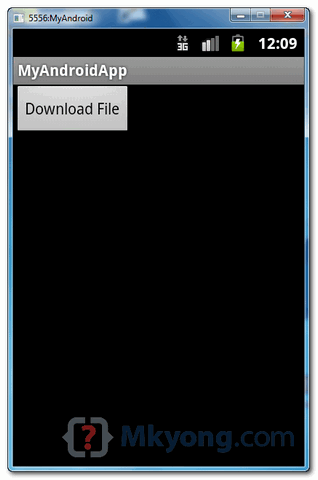
1. Result, a single button.
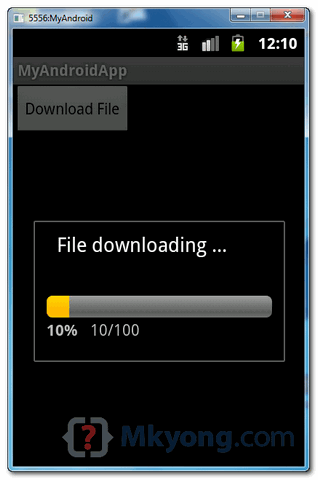
2. Click on the button, it will prompt a “progress bar dialog” to show the current download progress.
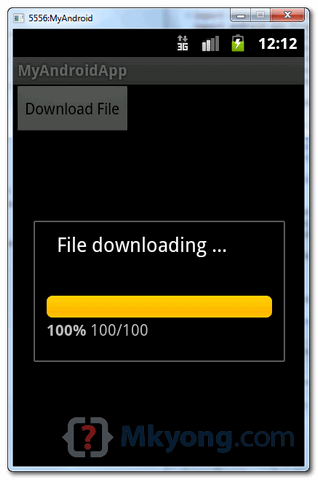
3. Task is completed, progress bar will show 100%, and close automatically.

how can we fill progress on circular progress bar programatacly
for more solution visit this
http://www.freedu.in/quiz
thanks for the tutorial..
Very thanks to you..
Nice tutorial
This is extremely useful. One question: is there a way to make the progressBar “modal”. Right now, in my implementation of it, if the user taps outside the progressBar, it disappears and the main activity returns.
use function of progressDialog setCancelable(false)
Thanks. I want to get battery status in ProgressBar. I searched in web but no code is available.
Thanks for tell how to use progress bar.
Simple nice and clear !
Thanks Man
check this one fully explained
http://pavanhd.blogspot.in/2013/04/android-progress-dialog-example.html
Good that you watermark your images. Some guy has plagiarized your article on his blog without giving credit : http://androidforbeginner.blogspot.com/2012/11/android-progress-bar-example.html
Check this one:
http://knowledge.itdoctorz.com/android-app-progressbar/
Complete one…
sir,can we hide data from sd card. when we will put our sd card to other phone it show blank data.can it possible in android…
in do some task while is necessory??
Excellent Tutorial. Want a tutorial on ProgressBar based on DialogFragment.
no u cant…
Nice tutorial but it will work when i rotate the device.i am working on spinner progress dialog ,it works fine in any one mode (land or port) but after rotating the device ,it dismiss, so does it will work.
Why doesn’t the progress reset if I call the second time ?
Thanks it is very usefull for me now….
Thank once again.
Thank you very much…it is very help me.
But i want to play a local video with a upload button , help me
Hi, thank you very much for this example.
Now: suppose I want to display a new activity after the file download is complete (e.g.. after progress bar dismissal): what code should I insert after “}).start();” and before the .startActivity of a new Intent ?
Thanks
This is a progressdialog, not a progressbar! They are two different things!
Thanks helps a lot….
Thanks for the post.it helped me a lot.Keep posting more…
If I have to insert a Toast which displays, “file downloaded successfully”. Which is a good place to insert that Toast in the above code ?
after it completes 100 in progressStatus
Thank you very much :X
thanks a lot!!! very useful. thanks again!
Thank you very much…it help me