In JavaScript, we can use the location.reload() to reload a page, which is part of the native JavaScript Window interface.
location.reload();
Or a longer version.
window.location.reload();
Table of contents:
1. Reload the page and bypass the cache
The location.reload() method has an optional boolean parameter. If we pass true to the method, it will force the browser to reload the page from the server, bypassing the cache (defaults to false), similar to pressing Ctrl+F5 in most browsers.
location.reload(true);
2. Reload page with JavaScript
A complete example to show how to reload a page using JavaScript.
<!DOCTYPE html>
<html lang="en">
<head>
<meta charset="UTF-8">
<meta name="viewport" content="width=device-width, initial-scale=1.0">
<title>Page Reload using JavaScript</title>
</head>
<body>

  <h1 id="mainTitle">Hello World</h1>

  <button id="changeTextButton">Change Text</button>

  <button id="reloadPageButton">Reload Page</button>

  <script type="text/javascript">
    document.addEventListener('DOMContentLoaded', function() {

      // Select the button using its ID
      const reloadButton = document.getElementById('reloadPageButton');

      // Add a click event listener to the button
      reloadButton.addEventListener('click', function() {
          // Reload the page when the button is clicked
          location.reload();
      });

      // Select the button using its ID
      const changeButton = document.getElementById('changeTextButton');

      // Change the text content of mainTitle when changeButton is clicked
      changeButton.addEventListener('click', function() {
        document.getElementById('mainTitle').textContent = "JavaScript Reload a page!";
      });

    });
  </script>

</body>
</html>
</html>
Output
The page default shows a h1 Hello World and two buttons.
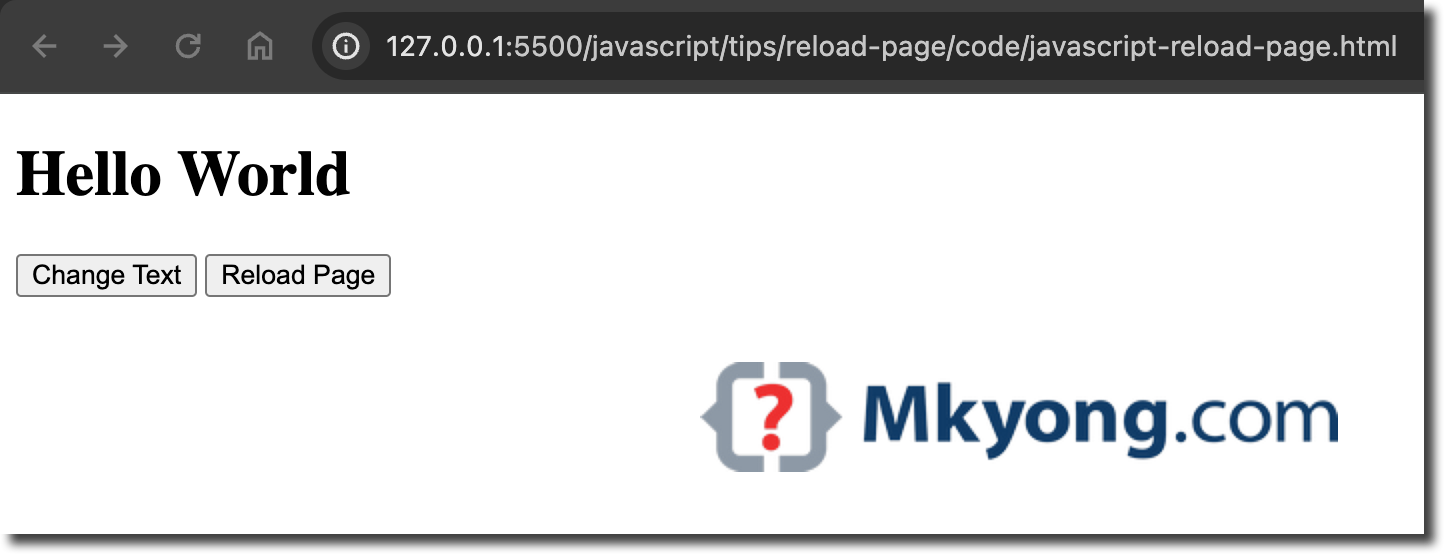
When we click the id=changeTextButton button, the page’s h1 Hello World will update to JavaScript Reload a page!.
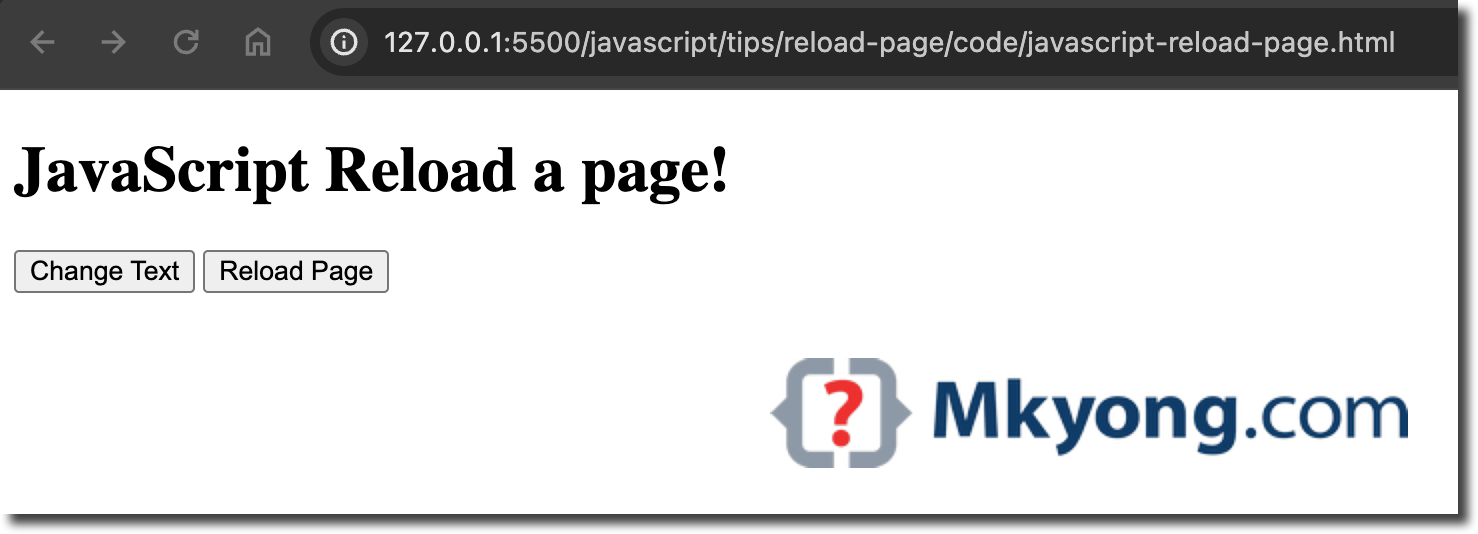
When we click the id=reloadPageButton button, the page reloads to the default.

No comments yet. Be the first to leave a comment!