This article shows you how to enable Gmail dark mode or dark theme on desktop, Android, and iPhone or iPad (macOS).
Topics
1. Gmail Dark Mode on Desktop PC.
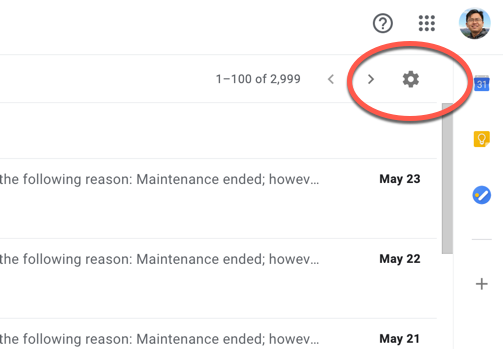
1.1 Any web browsers, log in the Gmail, at the top right, clicks the settings icon.
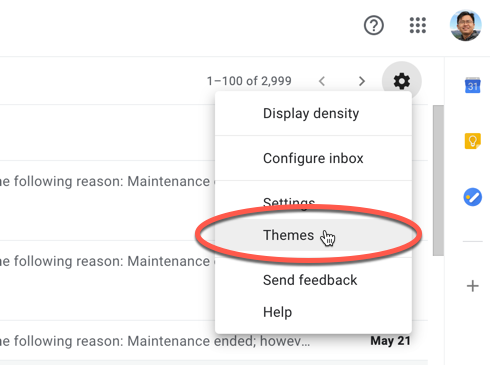
1.2 Clicks Themes
1.3 In "Pick your theme" dialog, we can see many themes here, scroll down a bit to find the dark theme. Select the dark colour and clicks on the "save" button.

1.4 Gmail dark mode or dark theme.
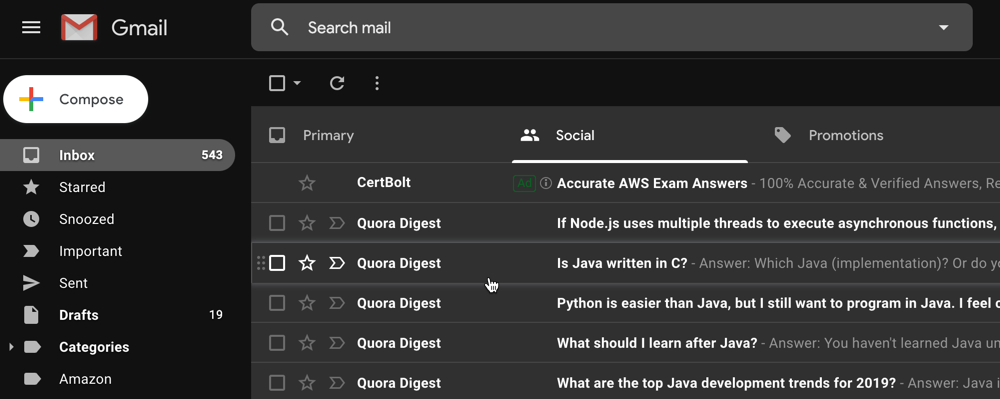
1.5 For girls, picks the rose theme.

2. Gmail Dark Mode on Android
On Android-powered phone or tablet, update and open the Gmail app.
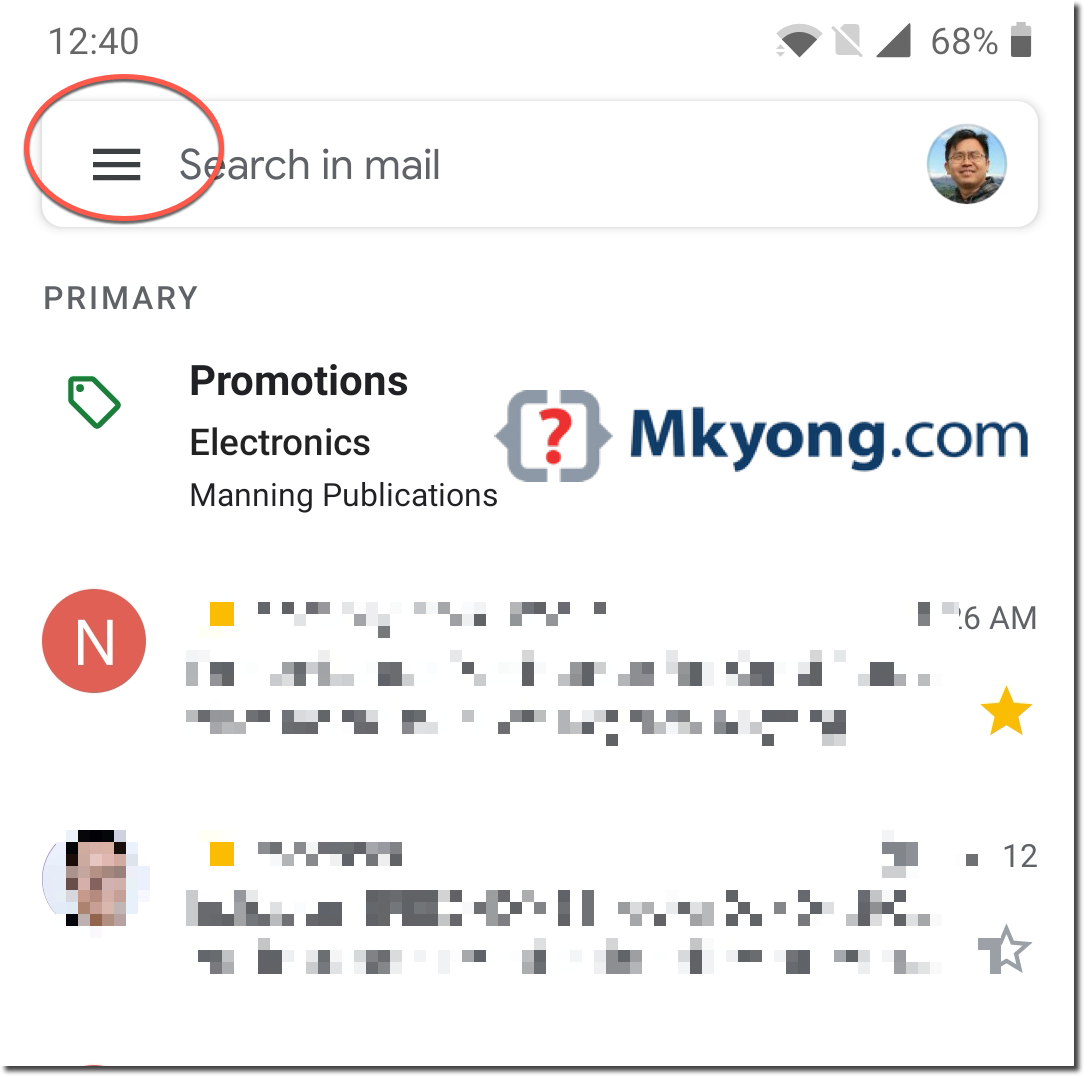
2.1 At the top left, clicks the Menu icon.
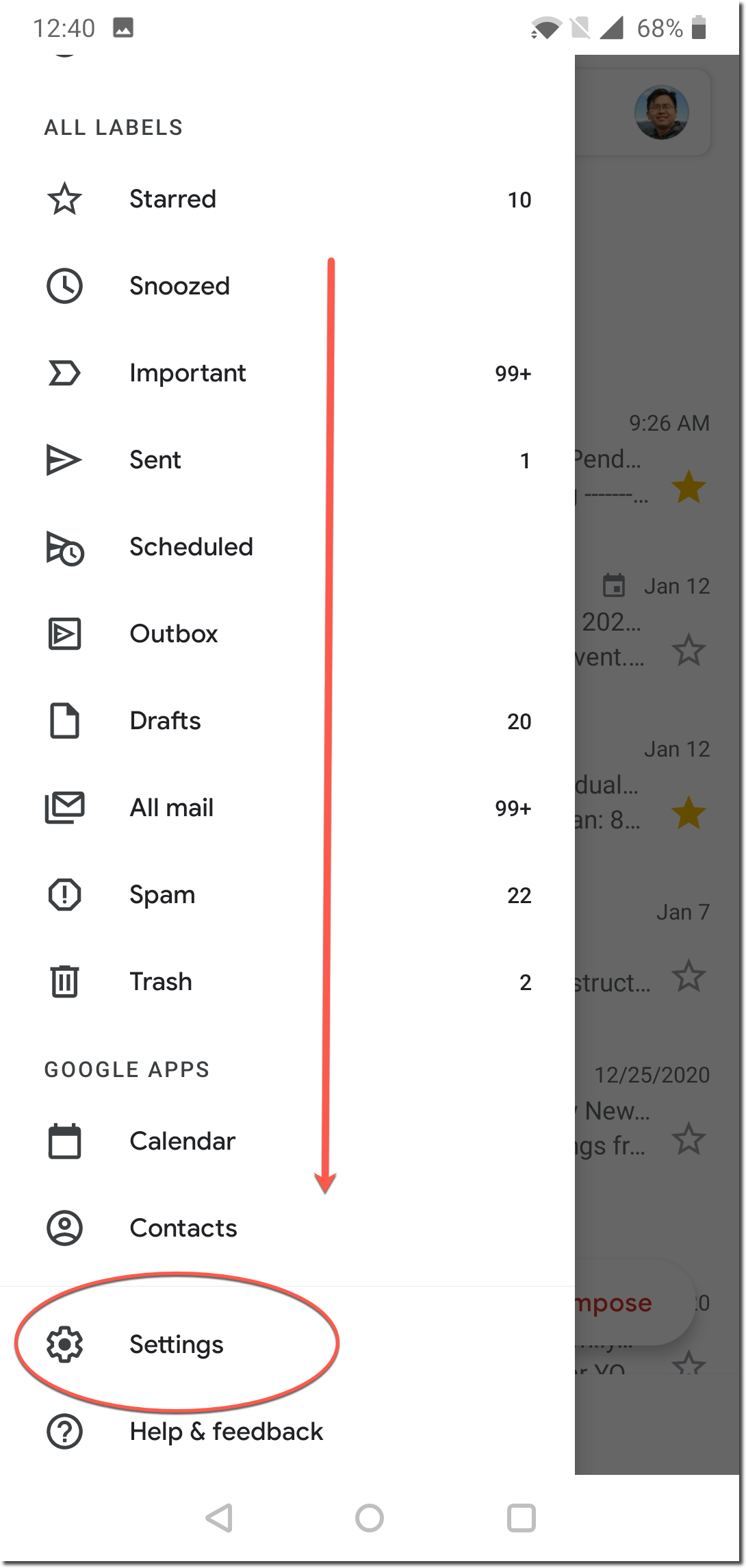
2.2 Scroll down to the end of the menu, clicks Settings.
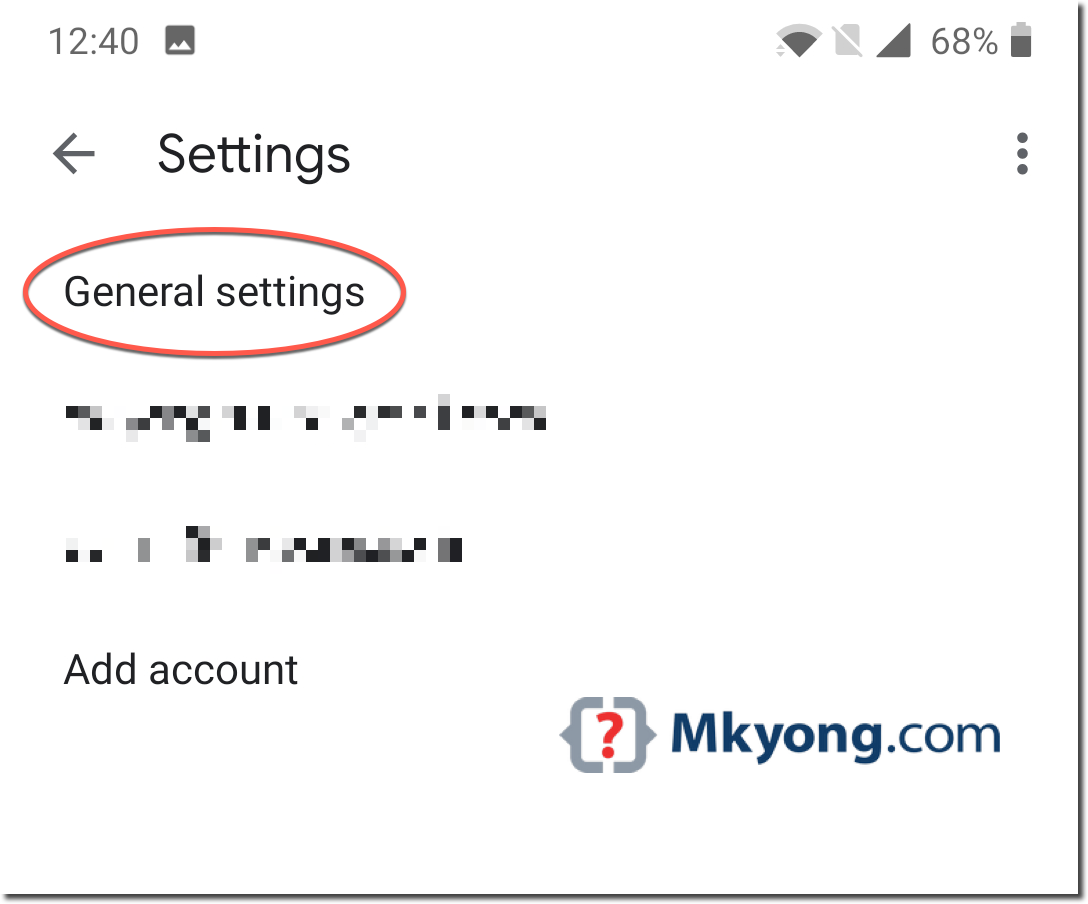
2.3 Clicks General settings.
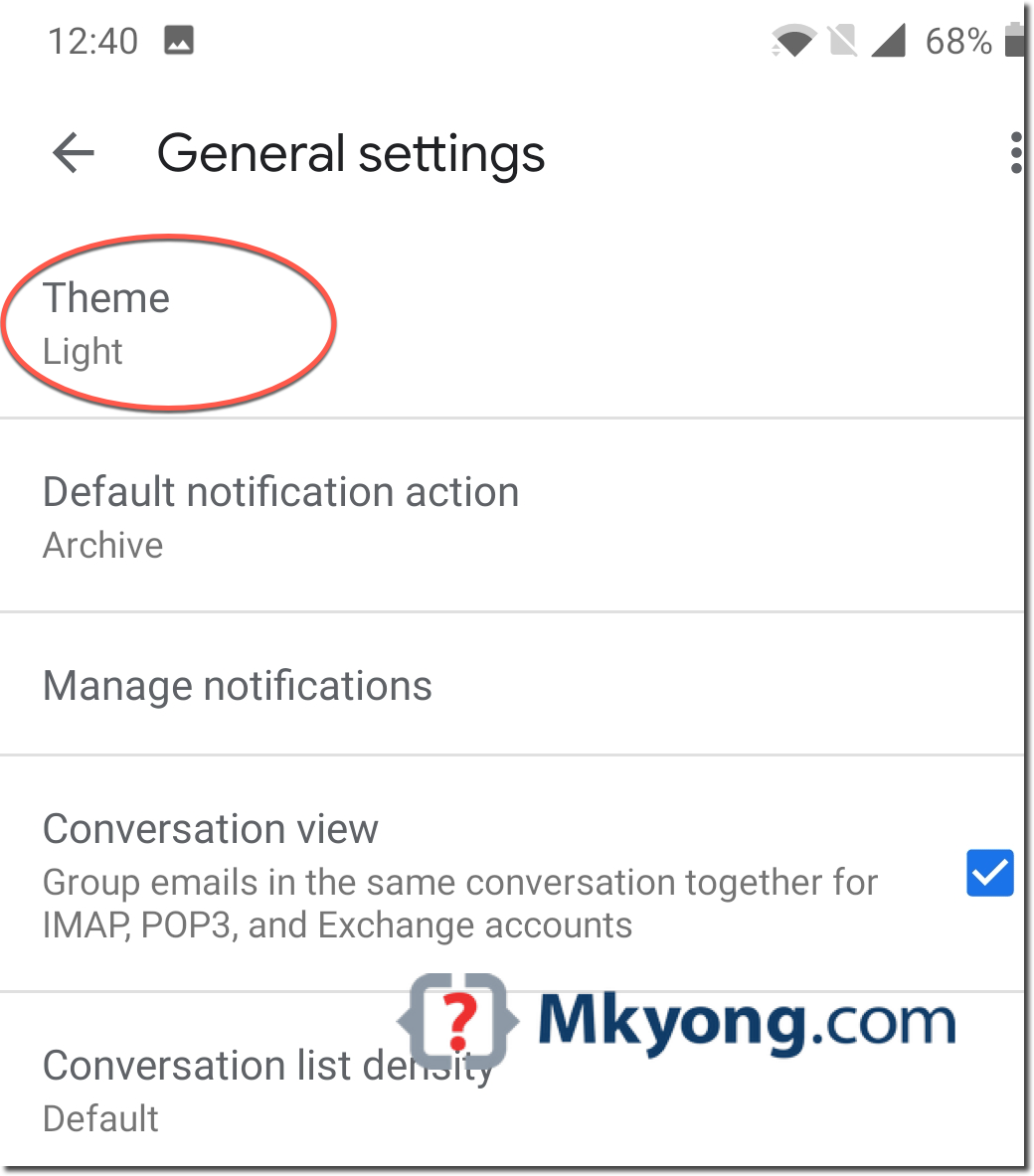
2.4 Clicks Theme.
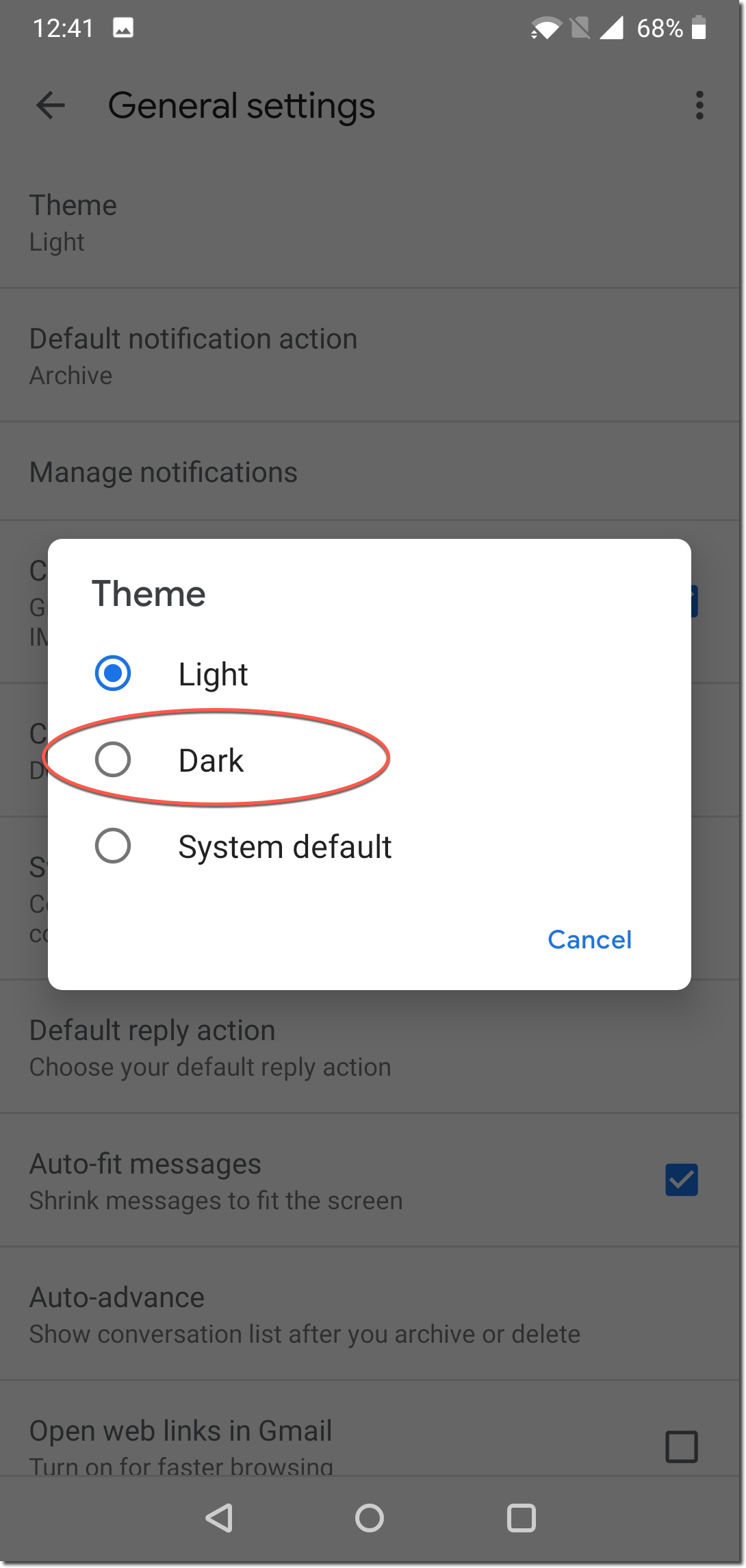
2.5 We can choose between dark, light, or system default. For dark mode, choose Dark.
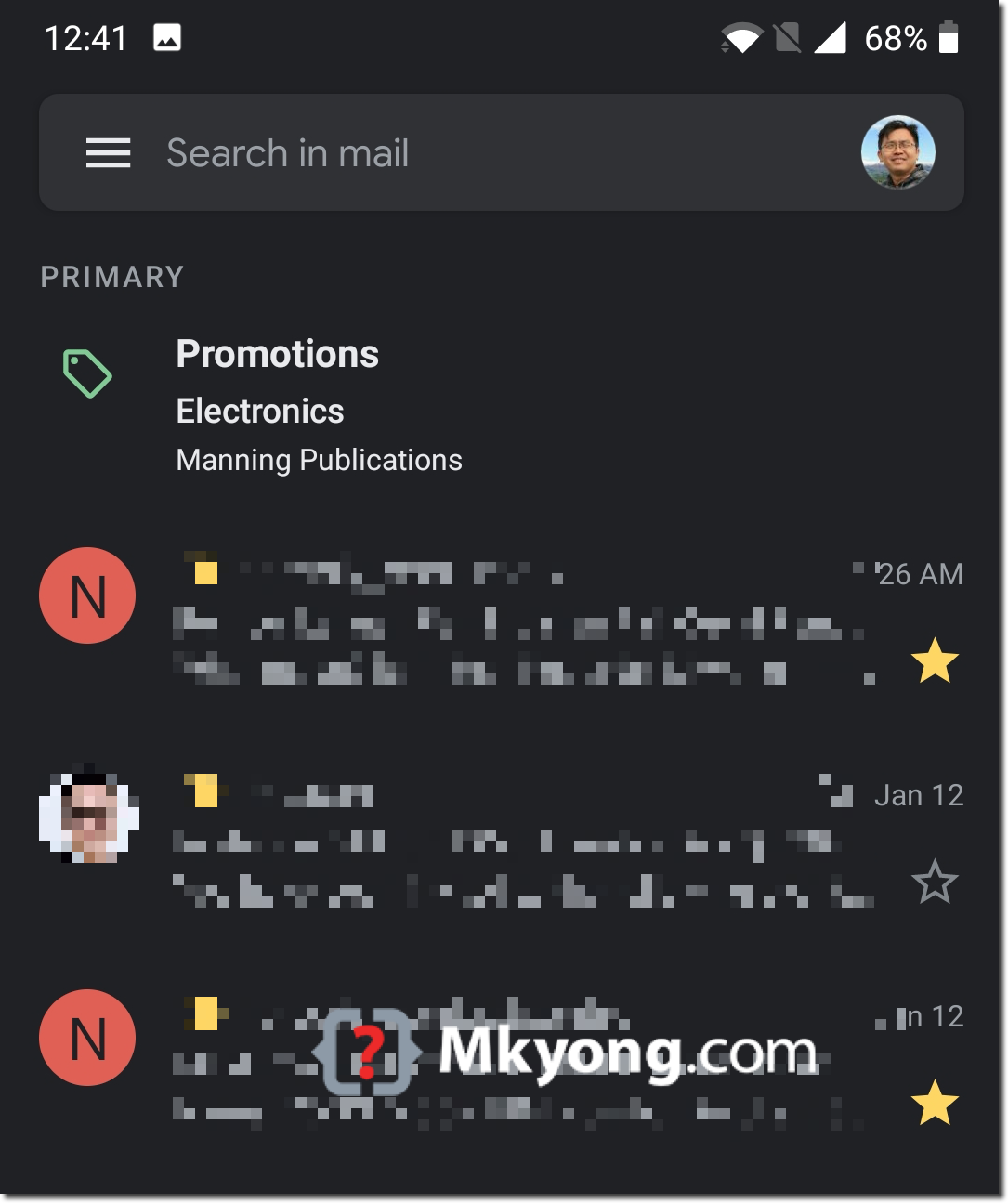
2.6 Back to the Gmail app, the dark mode is enabled.
3. Gmail Dark Mode on iPhone and iPad (macOS)
On iPhone or iPad, update and open the Gmail app.
3.1 At the top left, clicks the Menu icon.
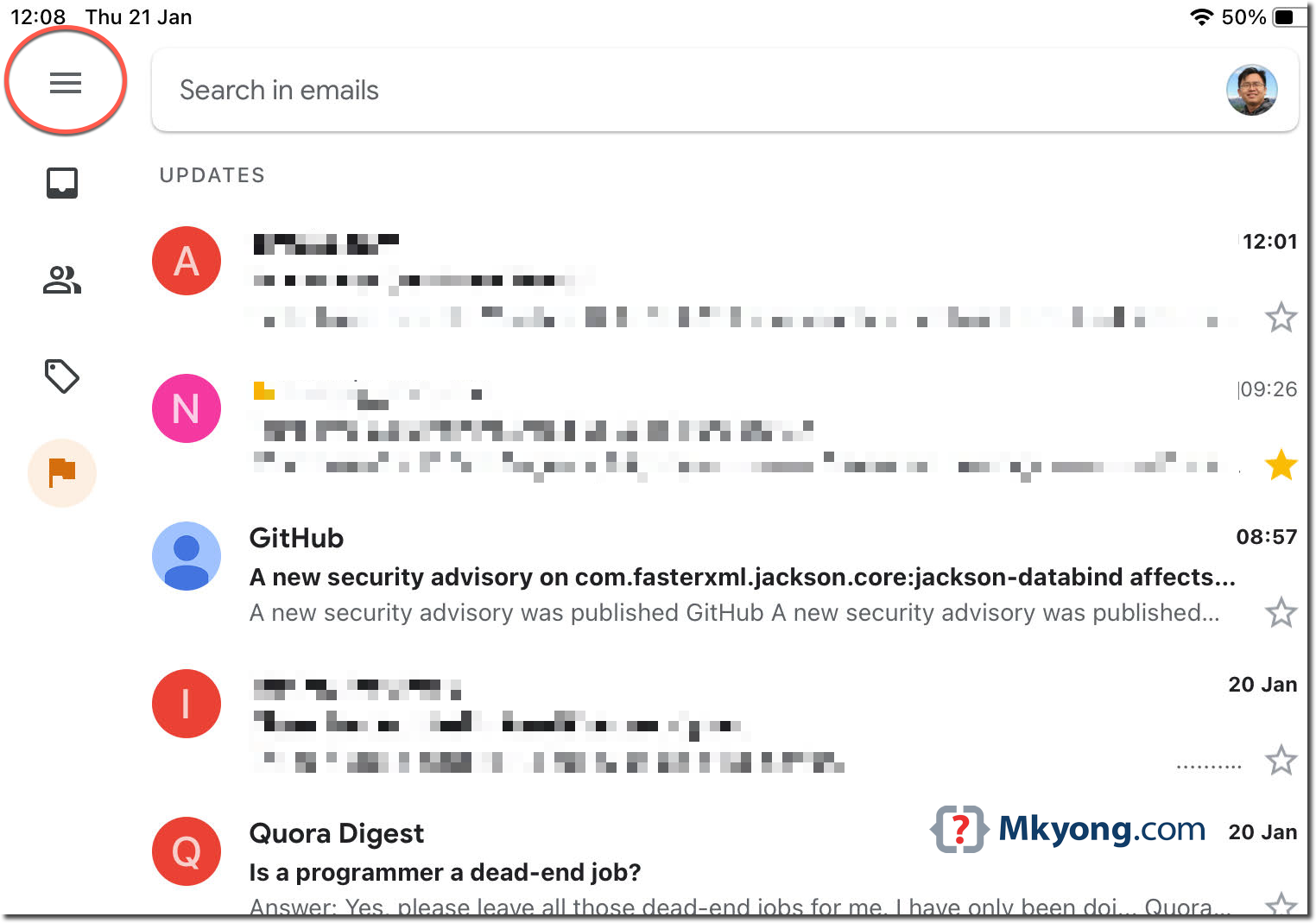
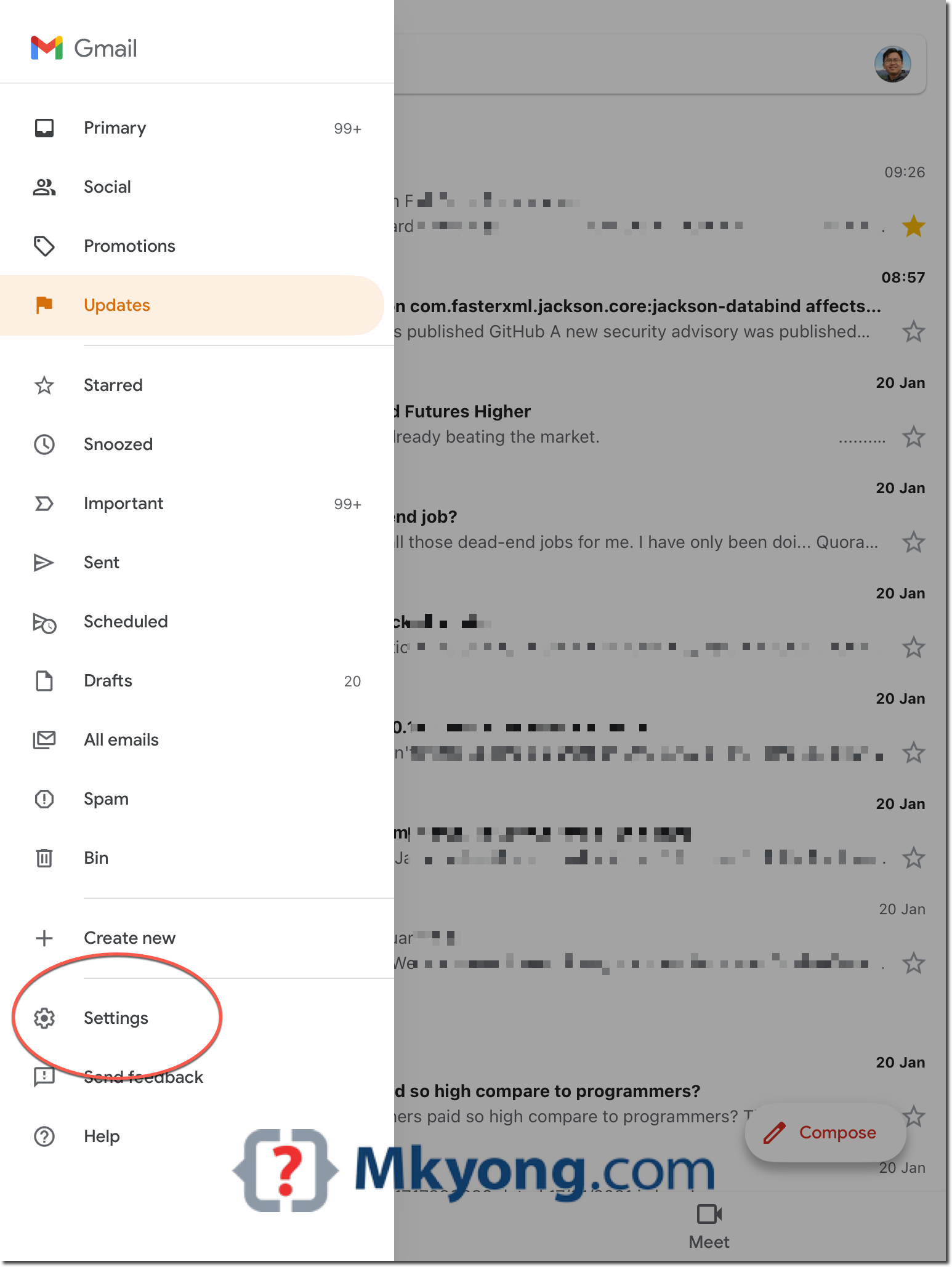
3.2 Clicks Settings.
3.3 Clicks Theme
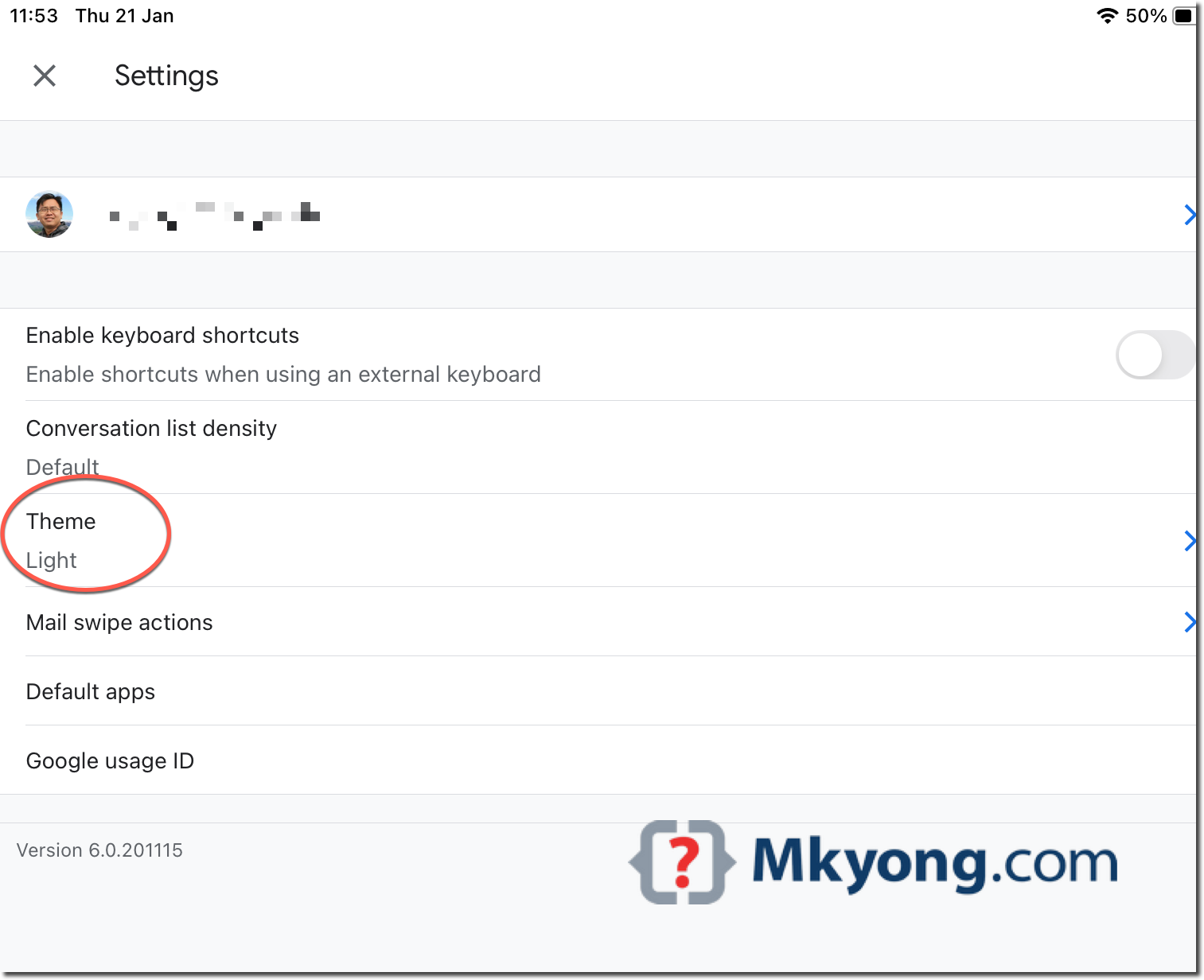
3.4 Clicks Dark
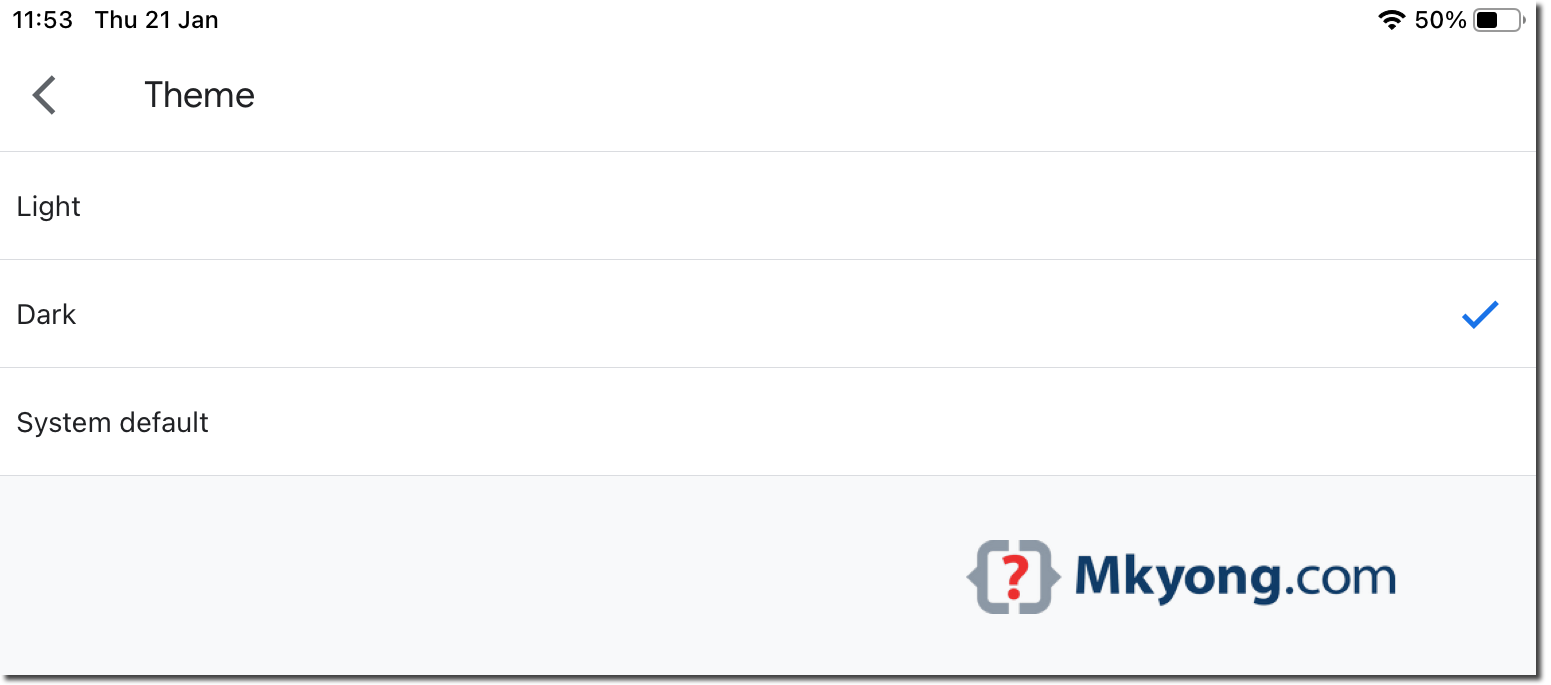
3.5 Back to the Gmail app, the dark mode is enabled.


No comments yet. Be the first to leave a comment!