In order to develop SWT application in Eclipse environment, we have to import SWT library into Eclipse Workspace manually.
Here is the steps to import SWT library
1) Right click on Java Project – Click Properties
2) Click Java Build Path –> Libraries –> Add Variable –> Configure Variable
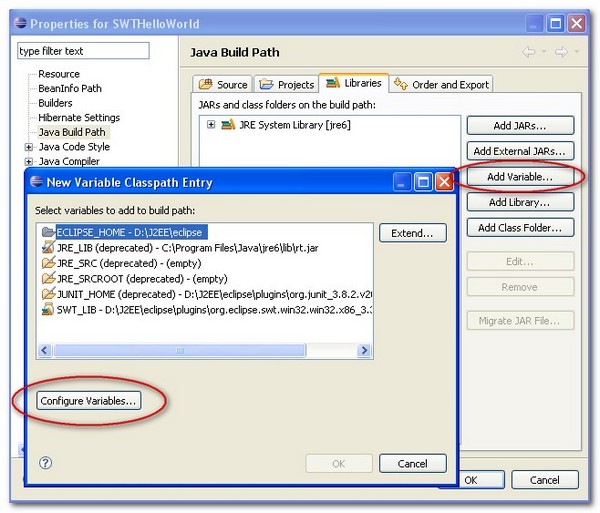
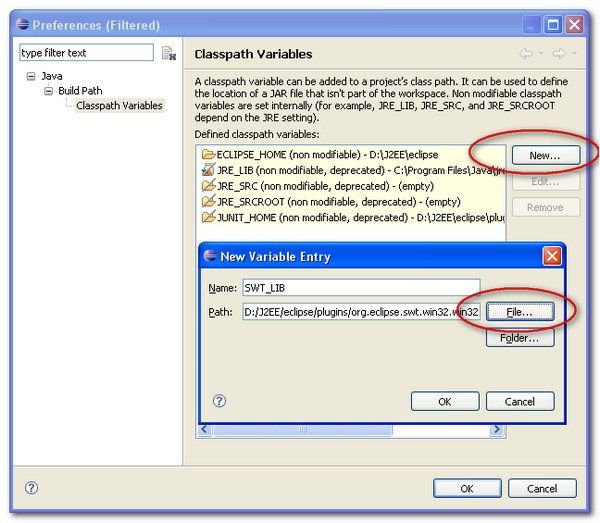
3) Click New –> Type a new variable name “SWT_LIB” in Name field
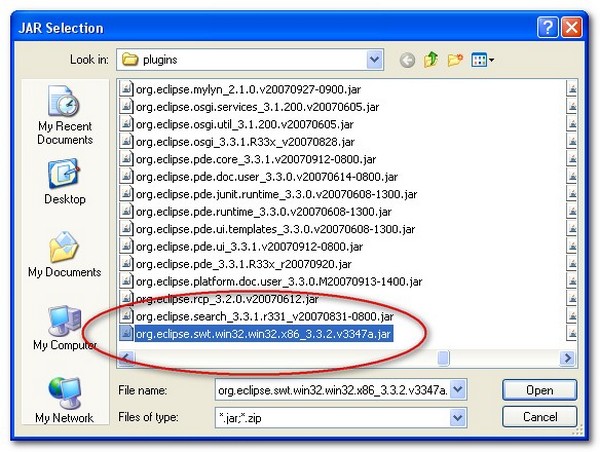
4) Click File and browse to SWT library file
P.S SWT library is located at Eclipse’s plugin folder, it’s name usually formatted as org.eclipse.swt.win32.win32.x86_versionnumber.jar
For Example,
D:/J2EE/eclipse/plugins/org.eclipse.swt.win32.win32.x86_3.3.2.v3347a.jar
4) Done
We can start our SWT development work now. Happy Coding ~

thanks, great tutorial, as ever
Great as always! Thanks a lot!
excellent – I’ve trawled the web to try to make this work and your site has the only straightforward answer.
Thanks a lot, works fine!
Hi Mkyong,
Thanks for another helpful article!!
I managed to import the SWT library however i am having trouble importing certain methods from that SWT library. When trying to import the Display method i type
import org.eclipse.swt.widgets.Display;
There is however no Display, trying widgets.*; does not help either.
I have spent lot of time for configuring SWT eclipse, this one is very good option
Big help, thanks 🙂
Thanks a lot! 😀