This tutorial shows you how to convert a Java project to Java web application project in Eclipse 4.2, it should work in older version as well.
1. Java Project
A simple Java project.

2. Project Facets
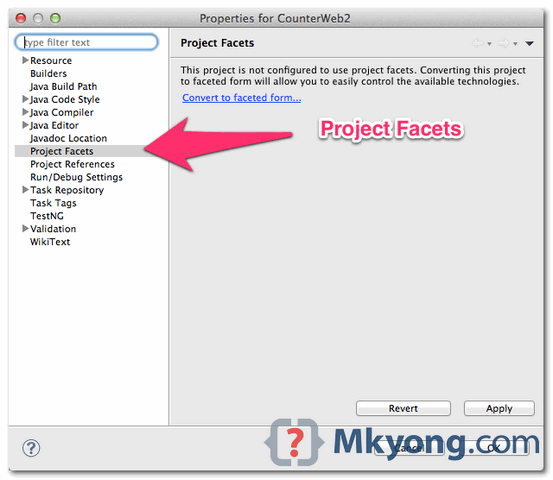
Right click on the project properties. Select “Project Facets“, and click “convert to faceted form…”
Check “Dynamic Web Module” and “Java“, and specify the value.
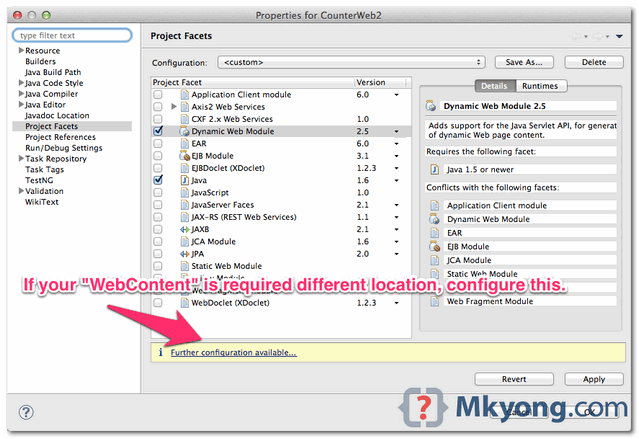
By default, Eclipse will generate all “web” related files (like WEB-INF, web.xml) in a “WebContent” folder. If you want change it to another location, Clicks on the “further configuration available…” link.
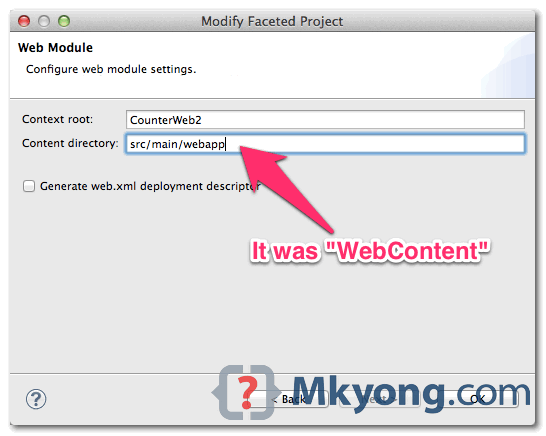
3. Web Application Project
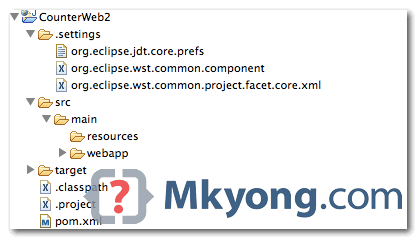
Done, the Java project is converted to web application project, see the globe icon on top of the project.

I’d like to thank you for your posts. It always helps me.
Bro you are awesome sauce thanks for the tutorial. What would have taken me hours to figure out on my own turned into an easy google search in 5 mins. Thanks
If we are using maven project in step 2 in context directory we should add “Target” instead of “src/main/webapp”
ThanK you so much for this tutorial.. It was very helpful..!!! 🙂
superrrr!!
i have created one spring boot project and i want to change “localhost:8080/test” to “www.myname.com”.
i am using Linux web server. how to solve this.
thanks
Well explained. Great post!
Nice tutorial, mkyong. Good job.
Do you know how to convert a web project back to a Java project? I tried unchecking “Dynamic Web Module” and got the error “Dynamic Web Module 3.0 cannot be uninstalled”.
Thanks
I am also having the same problem
But I cannot find a “Project Facets” option in Project Properties… why?
Edit: Turns out I was using the basic Eclipse, and not the Eclipse for Java EE. Facets are not available by default in the basic Eclipse. If you want to try using the “Install New Software” thing to get Facets installed, good luck to you. It’s better to just ditch your basic Eclipse and download Eclipse for Java EE.
Thank you Mkyong!
Thanks dud. It helped me a lot 🙂
???
You are awesome dude 🙂
Amazing! Its genuinely awesome article, I have got much clear idea about from this article.
This post has helped me many times… thanks for this document… it is a true lifesaver and blessing.
Thanks.
Greta!! thanks
I want to create a simple web project using eclipse helios but cant able to do so in new project there is no option for web projects?
Hello There. I found your weblog the use of msn. That is a really smartly written article.
I will be sure to bookmark it and return to
read more of your helpful info. Thanks for the post.
I’ll definitely comeback.
thanks, been a quick help in crucial time !
I was thinking to do it manually. But this helps me a lot .Simple and basic tool knowledge but effective .
any tutorial about pretty faces ? i need that or any good and clear tutorial sites ??
it’s very helpful today
it still works ^ ^
Editing the .project file to add natures and builders always had a nasty smell to it. I’d do it, but would hold my nose. What’s the point of an IDE if you have to monkey with files it is supposed to be maintaining.
At least with Indigo (3.7), I have found it much more convenient (and quicker) to simply open the .settings folder in the Package Explorer, and delete all the files in that folder. If you are nervous about taking such a drastic action, make copies of those files in some other folder before deleting.
Then open the project’s properties; click on the Project Facets node. All facets will be available for selection. You’ll have to do additional configuration for some facets, but that’s just par for the course.
One could legitimately criticize this alternative as also having a nasty smell, since I’m monkeying with files which Eclipse should be managing. I wouldn’t disagree. However, for me, it’s a lot less fussy and less error prone than editing natures and builders.
Of course, the “right” way would be to have the eclipse crew formalize such a conversion in their menus, etc., as they do for converting to Maven or JPA projects, for example.
Not sure, but this fix should make this procedure obsolete:
https://bugs.eclipse.org/bugs/show_bug.cgi?id=300182
This was very helpful! One thing I had to do to get it to work for me was restart Eclipse after Step 4
Many thanks to Mkyong !
It helped me really !
Thanks a lot for this tip it was very helpful!
Merci beaucoup pour cet explicatif
Tks for this tip !
Work fine for me…
thanks, that helped me out!
Good to know it’s worked for you :), actually some guys said this is not working …. but it’s work for you and me at least 🙂
Yes it works indeed ! thanks again !
I tried this in my eclipse 4.2 installation and I don’t see the “Project Facets” item in the
project properties. What’s up with that?
Excellent