Here’s a guide to show the use of DirectX Diagnostic Tool to check Microsoft DirectX version that install on your computer.
1. Click “Start” or “Windows button“, click “Run“. For Windows 7, the “Run” is equal to the “Search programs and files” text box.
2. Type “dxdiag“, and then click OK.
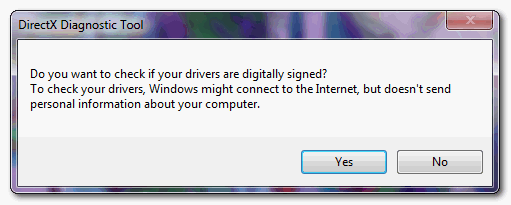
If this is the first time you use the “DirectX Diagnostic Tool”, it will prompt the checking dialog box like below, click yes.
3. On the “System” tab, you can check the Microsoft DirectX version in the “System Information” section.
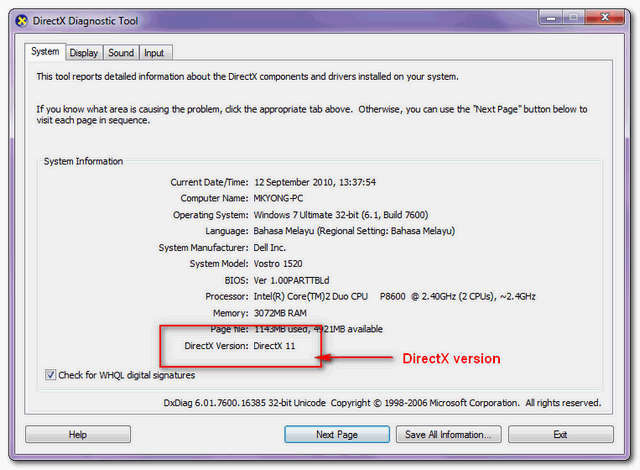
In this case, Microsoft DirextX 11 is installed on the computer.

No comments yet. Be the first to leave a comment!