In Android, LinearLayout is a common layout that arranges “component” in vertical or horizontal order, via orientation attribute. In additional, the highest “weight” component will fill up the remaining space in LinearLayout.
In this tutorial, we show you how to use LinearLayout to display 3 buttons in vertical and horizontal order, and also how “weight” works.
P.S This project is developed in Eclipse 3.7, and tested with Android 2.3.3.
1. LinearLayout – Horizontal
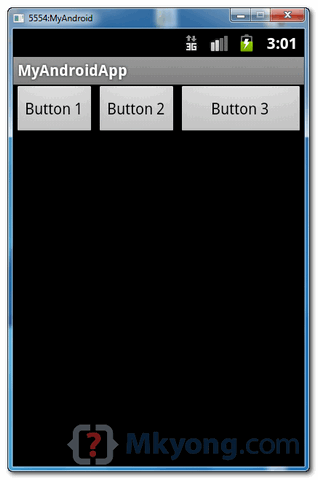
Open “res/layout/main.xml” file, add 3 buttons within LinearLayout, with “horizontal” orientation. In this case, the highest weight is “button3”, so it will fill up the remaining space in the layout.
File : res/layout/main.xml
<?xml version="1.0" encoding="utf-8"?>
<LinearLayout xmlns:android="http://schemas.android.com/apk/res/android"
    android:layout_width="fill_parent"
    android:layout_height="fill_parent"
    android:orientation="horizontal" >

    <Button
        android:id="@+id/button1"
        android:layout_width="wrap_content"
        android:layout_height="wrap_content"
        android:text="Button 1" />

    <Button
        android:id="@+id/button2"
        android:layout_width="wrap_content"
        android:layout_height="wrap_content"
        android:text="Button 2" />

    <Button
        android:id="@+id/button3"
        android:layout_width="wrap_content"
        android:layout_height="wrap_content"
        android:text="Button 3"
        android:layout_weight="1"/>

</LinearLayout>
See figure :
2. LinearLayout – Vertical
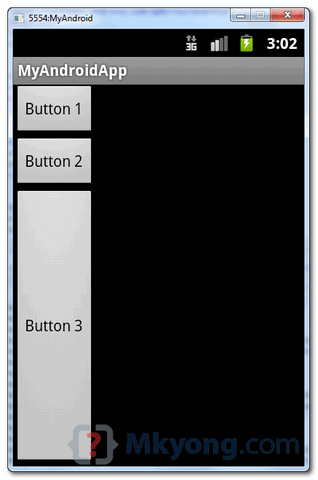
Now, change the LinearLayout to “Vertical” orientation.
File : res/layout/main.xml
<?xml version="1.0" encoding="utf-8"?>
<LinearLayout xmlns:android="http://schemas.android.com/apk/res/android"
    android:layout_width="fill_parent"
    android:layout_height="fill_parent"
    android:orientation="vertical" >

    <Button
        android:id="@+id/button1"
        android:layout_width="wrap_content"
        android:layout_height="wrap_content"
        android:text="Button 1" />

    <Button
        android:id="@+id/button2"
        android:layout_width="wrap_content"
        android:layout_height="wrap_content"
        android:text="Button 2" />

    <Button
        android:id="@+id/button3"
        android:layout_width="wrap_content"
        android:layout_height="wrap_content"
        android:text="Button 3"
        android:layout_weight="1"/>

</LinearLayout>
See figure :

Um, mr.kyong, is it possible to have the ‘weight’ attribute fill both vertical and horizontal space in vertical linear layout?
Good
yes it is possible
Rather than text in each button, can LinearLayout have 5 images (buttons) that would evenly spread if landscape or wider screen? and a 9patch background to cover the gaps? Thanks!!
Hello mykyong, nice article on linear layouts, you may also want to check this calculator in Android made only using linear layouts. this explains it all
http://www.youtube.com/watch?v=tUpwbsrhrmM
Hi mkyong ,
very nicely explained , and i have one doubt can linear layout be nested
Your explanation and examples are really good and crisp, Thanks for sharing.
Awesome tutorials
can we add two listview in a single activity
yes you can.
If you would like to learn how to use the following objects to write an Android application that displays a vertically upward scrolling Rainbow of colours in a FREE video, then click the
link at the end of this comment:
. LinearLayout
. Activity
. View
. Canvas
. Paint
. ArrayList
http://androidprogrammeringcorner.blogspot.com/2015/06/pak-longs-android-programming-corner_24.html
Why not take a look at my blog about how to create an Android app that displays an Image in an ImageView control of the main Activity at the full width of the screen.
The app uses the following Android SDK objects:
. ImageView
. LinearLayout
. Bitmap
. Activity
. XML layout
. LayoutParams
. Display
Also:
. layout_width
. layout_height
. orientation
. id
. vertical
. match_parent
XML attributes and values are covered.
Click the link BELOW! to see
http://androidprogrammeringcorner.blogspot.com/2015/06/pak-longs-android-programming-corner.html
sir i am new in android i join this group for basic
I am looking to combine the gridlayout and linear layout
give me explanation for
Thank you! You are a genious!