Problem
Here’s my PC environment :
- Database : Oracle 11g
- OS Platform : Windows 7 Ultimate 64 bits
- JDK : 1.6 .0_24, 64 bits
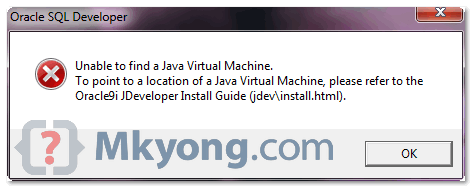
When I click on the Oracle SQL developer, it prompts me to key in the JDK folder. However, after I specified the JDK folder, it prompts me following error dialog box :
Unable to find Java Virtual Machine. To point to a location of a Java Virtual Machine....
See figure below :
Solution
The Oracle SQL developer is NOT supported on 64 bits JDK. To solve it, install a 32 bits / x86 JDK and update your SQL developer config file, so that it points to the 32 bits JDK.
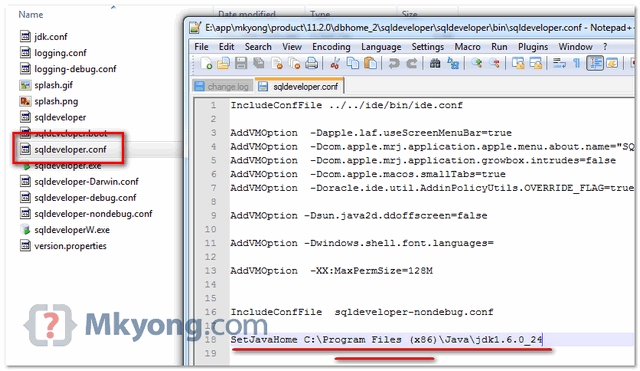
Edit the “sqldeveloper.conf“, which can be found under “{ORACLE_HOME}\sqldeveloper\sqldeveloper\bin\sqldeveloper.conf“, make sure “SetJavaHome” is pointing to your 32 bits JDK.
For example, “SetJavaHome C:\Program Files (x86) \Java\jdk1.6.0_13“.

Thank you very much sir!!!!
Finally finally resolved this issue. Thankyou so much
Thanks you so much, finally i can use sqldeveloper.
Thank you so much. My problem got resolved !!! 🙂
Thank you very much. I was just spend an hour with the JVM not found error. I installed 32 bit jdk and all is Ok.
Thank you mkyong, It worked and problem solved.
Thank you so much. Worked for me.
Thank you. I am able to fix my issue by setting 32 bit java home.
I solved the problem by installing the SQL Developer version 17.4.0.355.2349-x64 and did not have to configure anything else.
resolvi o problema instalando a versão SQL Developer 17.4.0.355.2349-x64 e não precisei configurar nada mais.
Just like to thanks for this post. It has solved my issue.
As I don’t have Administrator permissions in the machine I’m running SQL Developer, I was able to run it by CMD and setting PATH environment variable to the correct 32-BIT JRE folder.
Thanks a lot!
could you please explain how did you do it with cmd i cant figure it out
but I am getting another error of msvcr100.dll is either not designed to run on Windows or it contains an error. how can i upload that screen shot ? plz suggest for the error.
thanks
After so many searches on the, finally a solution. Thanks a lot!
This was really helpful. kudos.
As a tip: don`t try to use any other version of JDK will only work with jdk 6. And I got it configure only after placin this address (C:Program Files (x86)Javajdk1.6.0_45binjava.exe) on the pop up window and this one (SetJavaHome C:Program Files (x86)Javajdk1.6.0_45bin) on the sqldeveloper.conf
FINALLY! I can use my oracle… Thank you so much..
Yes, It worked for me. Followed the steps as mentioned..
This helped me, thank you!
i cant believe it , troubleshoot the error with in a second. Was about to uninstall the database server . I know its glitch to work in windows 8 but ends all well. Im lovin it
Thanks a ton!!!
The solution mentioned on top resolves our problem. Thanks!
Thanks for the info… 🙂
That helped… Thanks a lot
Works for the JDK 1.8. Many thanks 🙂
Many Many ThanKs…it worked for me….
Dude you saved me life !! Thanks a ton 🙂 🙂
good solution!
Thank You,
Works for me!
On linux runs with a 64 bits jdk but ONLY jdk 6
note that u must use jdk 1.6.* or jdk 1.5.*, the latest version which is 1.7.* or later still would be problematic
albeit the 32-bit versions of jdk 1.6.* or 1.5.*
With Oracle SQL Developer version 4, these instructions seem to be inapplicable.
Thanks!! It works for me..
Thanks!! Worked for me. Although if someone faces the problem of dialogue box appearing again and again even after giving the correct path, then right click the SQLDeveloper Application file and select Run As administrator. Then give the correct path. And it should work this way.
Even though ran as administrator getting same error dialogue box.Could not find out what is the problem.
Save my day thanks
Raju Cherukuri
Thanks!!
was really well explained sweet and short.
Thanks a million.
Thanks a lot…
Thank’s man, This solution helps me so much!!! You are the best !!! =)
you can find some more details in the below link,”http://javadomain.in/solved-oracle-sql-developer-unable-to-launch-the-java-virtual-machine-located-at-path/”
Thanks a ton, was right on! Solved the issue in one shot.
Excellent solution!!
Thanks ,
works great & now i can enjoy Oracle DB’s GUI feature……….!
I got another Problem after making the change. Now it is repeatedly asking for Java.exe, Please respond quickly as i am going to start my final term project.
Awesome…worked for me…thank you
Thank you, after tons of googling this is the only place that mentioned 64 bit was not supported. Unbelievable why Java cannot give a more meaningful error message.
Thx for the tip dude. all i needed was to see “NOT supported on 64 bits JDK”!
I normally never leave comments. But this time I had to.
Thank you!!! so much. After an hour of troubleshooting with dead ends, I decided to google the issue, then came across your post and boom! the issue was fixed in 2 min!
Thank you so much!
Thanks for info bro.. saved lot of time..
Thank you!
wow. u really saved my 2 hours.
thanks
its worked
Thanks mkyong, your instructions were crystal clear, it really did the trick.
Thank you mkyong. This post helped me a lot 🙂
I downloaded “jdk-7u21-windows-i586.exe” from ‘http://www.oracle.com/technetwork/java/javase/downloads/jdk7-downloads-1880260.html’ and changed the config file as you suggested. I am able to open SQL Developer now.
Thanks. It fixed the issue.
Thanks.
Thanks a lot mkyong. It worked.
I cannot thank you enough. You can’t imagine how much this post of yours has helped me. I was struggling with this issue since last 4 weeks.
THanks a ton.
-Kumar, Melbourne, Australia
REALLY WORTHFULL FOR ME.
It worked. Thanks! =D
Cheers!
Thanks 🙂
Thanks it worked for me 🙂
Hello;
A better solution, without installing any JDK 32 bits, is to point to the JDK installed by Oracle itself, as follow :
SetJavaHome D:\app\AHMED\product\11.1.0\db_1\jdk
Good luck!
Where do I put this line? Please tell me in detail.
Hello Anil,
Well just follow what the original post tells to access the file “sqldeveloper.conf“ :
Step 1 :
Open the file “sqldeveloper.conf“, which can be found under
“{ORACLE_HOME}\sqldeveloper\sqldeveloper\bin\sqldeveloper.conf“.
Step 2 :
Copy the path of the JDK 32 bits installed by Oracle, which can be found on the folder that you specified when installing Oracle, for instance :
“D:\app\AHMED\product\11.1.0\db_1\jdk“ //This is the folder where I installed Oracle.
Step 3 :
Search for the line starting with “SetJavaHome”, then paste the path :
SetJavaHome D:\app\AHMED\product\11.1.0\db_1\jdk
If you can’t find this line, then just write it down.
I think this is it. Good luck.
But I’m unable to edit the file. Says it is write protected.
1. Run the notepad as an administrator.
2. the open the file location and edit
3. save the changes
The JDK for oracle works for me win 7 64bit
neither JDK 64 bit version nor JDK 32 bit worked.
@Ahmed ktob You are a hero 😀
Thanks so much!
when i want to edit sqldeveloper.config file after changes made to save the file it gets the error message Access Denied can you please give me the solution……….
I am also getting the same error, access denied while saving changes to sqldeveloper.conf
As a solution try to copy the file to your desktop or someplace else, edit the file (in the desktop) and then copy and paste it again into the original place. It will ask you to override the existing file, click yes.
awesome!!!!
“Access Denied” means you don’t have the permission, find out why and or ask your administrator update it for you.
Thanks.. worked for me. Lost much time in finding solution..
Thank you !!!!!!!!!!!!!!!!!!!!!!! 🙂
Baku
Azerbaijan
Superb, Thanks a lot it worked 🙂
Yay! Thanks!
It worked for me as well…thanks a lot.
Thankyou it worked………
Its worked. Thanks
Great.. It worked for me..
Thanks mkyong
thanks you mkyong
Thanks for the solution. it works nice.
Thank you for solution!
It worked for me
thanks 😉
Hey!
After these changes, it prompts another error that says some dll is missing and I d better re-install..
@Orkun:
Probably you have to install redistributable packages of C++. Try to find into MSDN website for “Microsoft Visual C++ 2010 Redistributable Package” and then navigate to version 2005 also. Install both x86 and x64 versions.