In this tutorial, we show you two ways to find large files on Mac OS X.
- Built-in search tools
- Find command
1. Search Tools
To open the search tools, do following :
- Mac OS X Desktop, run Finder.
- Press
Command+Fto open “Search Tools” (it also can be located from menu -> File -> Find). - Click on “Kind” filter and select “Other” -> “File Size”.
- Select the rest of the filter and find it.
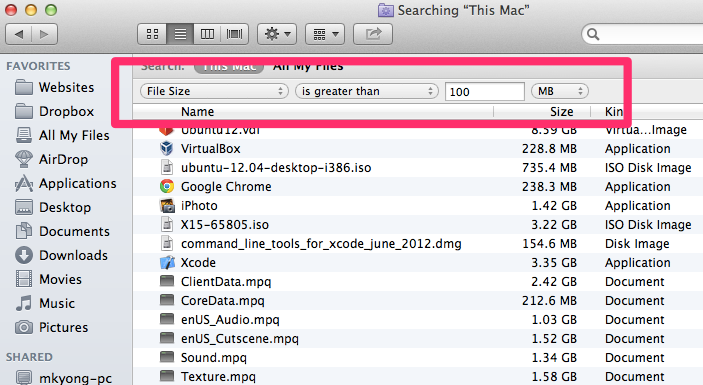
2. Find Command
For advance user, they may prefer find command. Open terminal and run following command :
sudo find / -type f -size +100000k -exec ls -lh {} \; | awk '{ print $9 ": " $5 }'
Result – Find all files that have a size >= 100MB
/Applications/Diablo: 2.3G
/Applications/Diablo: 203M
/Applications/Diablo: 978M
/Applications/Diablo: 1.4G
/Applications/Diablo: 1.3G
/Applications/Diablo: 1.5G
/Applications/iPhoto.app/Contents/Resources/PointOfInterest.db: 242M
//...

I figured out how to use the above but fix the “Diablo” problem. Looks like awk is using spaces to identify when it’s a new “column.” You can get around this by adding additional “columns.” Here I’ve swapped the size and the filename columns so the file size is first. I also replaced the semicolon with a comma. Finally – exporting it to a file. Supports about 30 spaces in the directory+filename output.
sudo find /Volumes/directory -type f -size +100M -exec ls -lh {} \; | awk ‘{ print $5 “,” $9 ” ” $10 ” ” $11 ” ” $12 ” ” $13 ” ” $14 ” ” $15 ” ” $16 ” ” $17 ” ” $18 ” ” $19 ” ” $20 ” ” $21 ” ” $22 ” ” $23 ” ” $24 ” ” $25 ” ” $26 ” ” $27 ” ” $28 ” ” $29 ” ” $30 ” “}’ > large_100m_plus_files.csv
Thanks!
Mac bundled sort cannot handle ls -l human readable size (1GB). You should install gnu_tools via macport/homebrew and use gsort -h. I ended up with:
$ find . -type f -size +50000k -exec ls -lh {} \; | awk ‘{ print $5 “: ” $9 }’ | gsort -hr | head -2 | column -s”:” -t
1GB FILE1
345MB FILE3
column is only for nice formatting, and I like to see the size first.
2. is wrong. Can’t have multiple files called Diablo. Results look incorrect. Seems to show directories sizes instead of file sizes in that directory