PrimeFaces is using jQuery ThemeRoller framework, and it comes with 30+ pre-defined themes, visit all available themes, before create a custom theme.
In this tutorial, we will show you how to create a custom theme and apply it in PrimeFaces.
1. ThemeRoller CSS Framework
Visit jQuery ThemeRoller, play around the value to customize your theme, and click download.
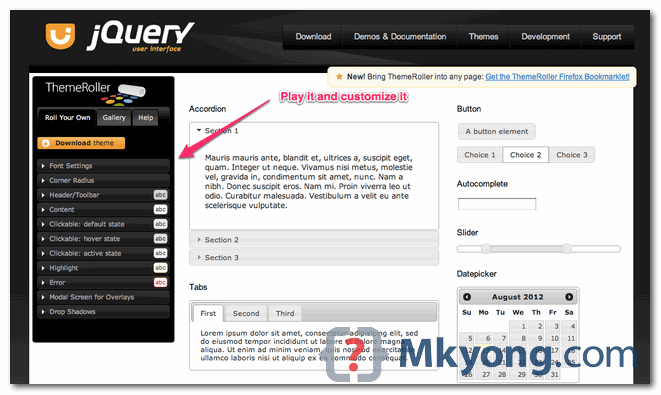
On the download page, select “Deselect all components“, and click on the download
2. Rename to theme.css
The file you’ve downloaded from ThemeRoller will have css, development-bundle and js folders. Go to css folder, rename jquery-ui-{version}.custom.css to theme.css.
P.S Must be theme.css, no other name.
3. Change Image Path
This is the tedious and boring path, edit “theme.css“, replace all existing standard css image path to the JSF resource loading path.
For example, change from this :
url(images/ui-bg_highlight-soft_75_cccccc_1x100.png)
to this :
url("#{resource['primefaces-mytheme:images/ui-bg_highlight-soft_75_cccccc_1x100.png']}")
Here is what I used to do, edit theme.css in file editor, use search and replace all option.
First, replace this
url(images
to this
url("#{resource['primefaces-mytheme:images
Second, replace this :
.png
to this
.png']}"
4. Jar It
Your new theme must follow following folder structure :
- jar
  - META-INF
    - resources
      - primefaces-yourtheme
        - theme.css
        - images
Adjust the folder to create an above folder structure, just a few copy and paste. Then go to one level up of folder “META-INT“, and issue a jar -cvf yourtheme.jar command to create a yourtheme.jar file.
$ jar -cvf yourtheme.jar .
List the content of the created jar file.
$ jar -tf yourtheme.jar
META-INF/
META-INF/MANIFEST.MF
.DS_Store
META-INF/resources/
META-INF/resources/primefaces-yourtheme/
META-INF/resources/primefaces-yourtheme/.DS_Store
META-INF/resources/primefaces-yourtheme/images/
META-INF/resources/primefaces-yourtheme/images/ui-bg_flat_0_aaaaaa_40x100.png
//..image files
META-INF/resources/primefaces-yourtheme/theme.css
5. Jar on Classpath
Copy above “yourtheme.jar” to project classpath.
6. web.xml
In web.xml, put this :
   <context-param>
        <param-name>primefaces.THEME</param-name>
        <param-value>yourtheme</param-value>
  </context-param>
Done. The new custom theme is created and applied in your PrimeFaces project.
Alternative Way
Above are what mention in PrimeFaces user guide, personally I don’t like the Jar process, which is quite troublesome, instead, you can copy the entire “primefaces-yourtheme” folder, and put it directly into the JSF resources folder.
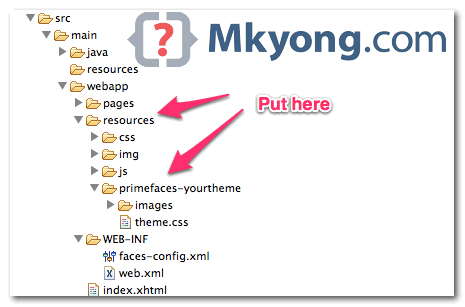
It works!

Hello , I have made my theme but I stopped in step 2
I don’e have this file jquery-ui-{version}.custom.css to rename to theme.css.
This worked for me:
Replacing
url(“images
to
url(“#{resource[‘primefaces-mytheme:images
And replacing
.png
to
.png’]}
Hi!
Tks a lot for your post. I tried both ways and worked very well.
My question is if there is a way to put the “\resources” folder on another url and primefaces see it someway.
Tks!
An online tool is also available to convert ThemeRoller zip files to Primefaces theme jars (so you dont have to download anything):
https://themeroller.osnode.com.
ThemeRoller versions: 1.10.3 & 1.9.2 are supported.
Just drag your zip file over and download the converted jar files.
Maven instructions are included.
Thanks a lot! I am glad I read the comments first 😉
mkyong should put this link on top…
The online tool from osnode at https://themeroller.osnode.com/themeroller/ now suppports the latest (and all previous) versions: 1.11.2, 1.11.1, 1.10.4 & 1.9.2.
Drag and drop the themeroller zip -> download the primefaces theme jar. Done.
Thanku so much
Hi,
the easiest way for a custom theme in PrimeFaces is.
Do
Step 1. ThemeRoller CSS Framework
Step 2. Use http://www.pftc.de ( the converter makes step 2 till 6 for you)
to make things easier, here is the regular expression I used to swap out the image tag:
Find: url\(images([^\)]+)\)
Replace: url\(\”\#\{resource\[\’primefaces\-mytheme\:$1\’\]\}\”\)</pre
*some IDE's will need this replace instead:
url\(\”\#\{resource\[\’primefaces\-mytheme\:\1\’\]\}\”\)
i have a problem in changing the css files name because there is two in my css folder can you help me please?
Hi all, I found two ways to make the jar very easily:
1-) Theme Converter: A nice tool that with no more than 4 click you can have your customized theme in a jar. Can be found here: http://sourceforge.net/projects/primefacestheme/
2-) The long way: A project in Eclipse => Plugin project…Then put the primefaces-theme folder in the project. Modify the path of the images and then Export to Jar. This can be done with right click. Uncheck all and it´s done. The holy JAR.
Hope this works…Thanx to Mkyong for this amazing space…
Hi,
I followed the above mentioned steps for creating my own theme,but unfortunatly after placing the jar in classpath i got the following Exception.
Please can u help…
javax.servlet.ServletException: Error loading theme, cannot find “theme.css” resource of “primefaces-yourtheme” library
javax.faces.webapp.FacesServlet.service(FacesServlet.java:606)
javax.faces.FacesException: Error loading theme, cannot find “theme.css” resource of “primefaces-yourtheme” library
org.primefaces.renderkit.HeadRenderer.encodeTheme(HeadRenderer.java:130)
org.primefaces.renderkit.HeadRenderer.encodeBegin(HeadRenderer.java:92)
javax.faces.component.UIComponentBase.encodeBegin(UIComponentBase.java:820)
javax.faces.component.UIComponent.encodeAll(UIComponent.java:1777)
javax.faces.component.UIComponent.encodeAll(UIComponent.java:1782)
com.sun.faces.application.view.FaceletViewHandlingStrategy.renderView(FaceletViewHandlingStrategy.java:424)
com.sun.faces.application.view.MultiViewHandler.renderView(MultiViewHandler.java:125)
com.sun.faces.lifecycle.RenderResponsePhase.execute(RenderResponsePhase.java:121)
com.sun.faces.lifecycle.Phase.doPhase(Phase.java:101)
com.sun.faces.lifecycle.LifecycleImpl.render(LifecycleImpl.java:139)
javax.faces.webapp.FacesServlet.service(FacesServlet.java:594)
sorry my english, in the moment that i’m going to execute the the command “jar -cvf yourtheme.jar” return this message.
La marca ‘c’ necesita la especificaci?n de archivos de manifiesto o de entrada.
Uso: jar {ctxui}[vfm0Me] [archivo-jar] [archivo-manifiesto] [punto-entrada] [-C dir] archivos…
please help me.
thanks.
Hola David, te falta especificar los archivos que quieres incluir en el JAR…
Después del nombre del fichero jar debes decir qué fichero quieres que formen parte del mismo:
jar -cvf yourtheme.jar .
jar -cvf yourtheme.jar *
etc….
It should have said:
First, replace this
url(images
to this
url(“#{resource[‘primefaces-mytheme:images
It left out the “images” when replacing “url(images”.
Thanks, article is updated.
Hi Mkyong,
very useful info. I applied the above to p:dataTable with paginator as below.
The FirstPageLink,PreviousPageLink,NextPageLink and LastPageLink were never displayed. I can hover over them and the colour correctly changes but the arrows are never visable. If click on were the arrows should be, the data correctly changes. Any ideas how I can get the above links to be displayed?
<p:dataTable id="dataTable" var="car" value="#{newTableBean.cars}" paginator="true" rows="10" paginatorTemplate="{CurrentPageReport} {FirstPageLink} {PreviousPageLink} {PageLinks} {NextPageLink} {LastPageLink} {RowsPerPageDropdown}" rowsPerPageTemplate="5,10,15" style="width:340px; font-size: 12px; font-family:verdana">Hello… I got the same problem? How did you solve yours?
Thanks.
Problem sovled:
images must be inside resources folder. NOT primefaces-theme folder.
Hi Mkyong, I use the information you post frequently, thank you. Just wanted to suggest a regular expression for that search and replace. I downloaded a theme jar, copied the css and images to my application and mad the image pathing changes(using an eclipse editor, but other regex should be similar)
to go from
url("#{resource['primefaces-bluesky:images/ui-bg_highlight-hard_70_000000_1x100.png']}")to
url(#{request.contextPath}/resources/images/ui-bg_highlight-hard_70_000000_1x100.png)I use:
\("#\{resource\['primefaces-bluesky:images/(.*)\.png'\]\}"\)for the search and:
\(#\{request.contextPath}/resources/images/$1\.png\)for the replace
To go the other way
from
to
url("#{resource['primefaces-mytheme:images/ui-bg_highlight-soft_75_cccccc_1x100.png']}")use
for search and
url\("#\{resource\['primefaces-mytheme:$1\.png'\]\}"\)for the replace
Wow, thanks for your inputs 🙂
i’ve used ‘sed’ command in linux to convert the urls of css file.
one command:
sed "s/url(images\/\(.*\)\.png/url(\"\#\{resource[\'primefaces-YOURTHEME\:images\/\1\.png\']\}\"/g" jquery-ui-1.9.0.custom.css > theme.css