In Eclipse, you press CTRL + SHIFT + O “Organize Imports” to import packages automatically. For IntelliJ IDEA, if you press CTRL + ALT + O “Optimize Imports”, it just removes some unused imports, never imports any package. And the worst is you need click on the class name and press ALT + ENTER keys to import the package one by one.
Solution
The IDEA is working a bit differently, the “unambiguous imports” are imported on the fly, and you need to enable this feature manually.
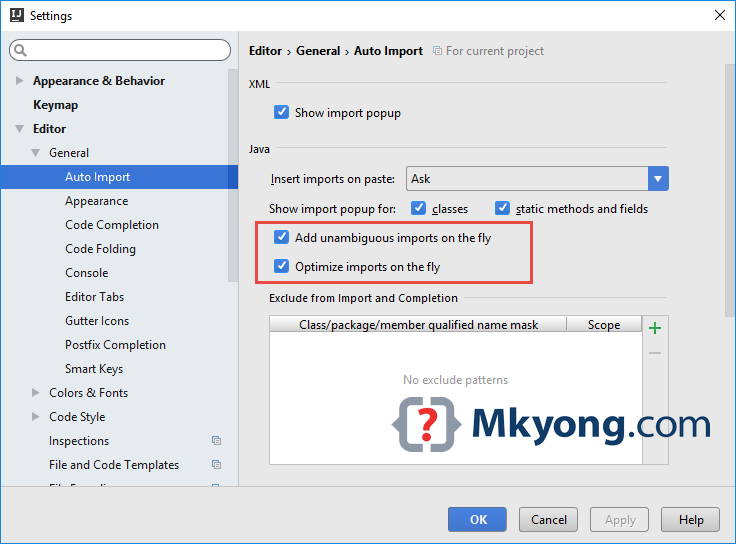
File –>> Settings –>> Editor –>> General –>> Auto Import –>> Checked these options :
- Add unambiguous imports on the fly
- Optimize imports on the fly
Note
For ambiguous imports (same class name in a different package), you still need click on the class name and press
For ambiguous imports (same class name in a different package), you still need click on the class name and press
ALT + ENTER keys to import the package manually.
Done.

I don’t know about you but this doesn’t work at all. It works for a few seconds then it freezes leaving un-used imports and no longer importing anything at all. If I go in settings again and disable and re-enable the setting then it works exactly as expected for a few more seconds.
And they charge money for this ide ….
Thanks man! In 2021 isn’t fix that yet?
Can you ket us know about IDEA mac shortcut key
control+shift+o
Thank you so much, trying out idea after years in Eclipse, i was wondering WTF , i dont want to import one by one.
Switched to IDEA, and feel the same thing, WTF, import one by one? The option should enabled by default.
Useful article, totally agree – it should be a default option.
From my point of view, this should not be a default option. It causes terrible lag during refactoring…