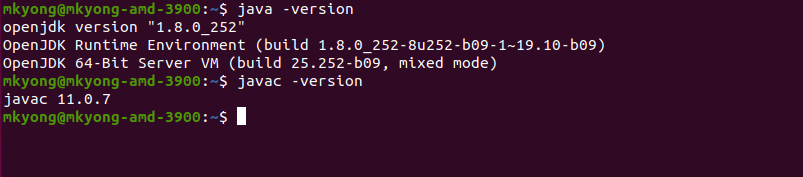
We can use the command java -version to check the installed JDK version on your computer.
Table of contents:
- 1. Open Command Line or Terminal
- 2. Run the Javac Version Command
- 3. Run the Java Version Command (Optional)
- 4. JAVA_HOME Environment Variable (Optional)
- 5. References
1. Open Command Line or Terminal
- On Windows, open the Command Prompt
cmd. - On macOS or Linux, open the Terminal.
2. Run the Javac Version Command
The javac command gives the version of the JDK, the Java development kit.
In the command prompt or Terminal, type the following command and press enter:
javac -version
Sample output of javac -version. The JDK version 23 is installed on the computer, as shown in the example below.
javac -version

javac 23.0.1
3. Run the Java Version Command (Optional)
The java command gives the version of the JRE, the runtime environment.
In the command prompt or Terminal, type the following command and press enter:
java -version
Sample output of java -version. The JRE version 23 is installed on the computer, as shown in the example below.
java -version

openjdk version "23.0.1" 2024-10-15
OpenJDK Runtime Environment Temurin-23.0.1+11 (build 23.0.1+11)
OpenJDK 64-Bit Server VM Temurin-23.0.1+11 (build 23.0.1+11, mixed mode)
4. JAVA_HOME Environment Variable (Optional)
Many applications depend on the JAVA_HOME environment variable. It is better to check whether we set it correctly.
echo %JAVA_HOME%  # On Windows
echo $JAVA_HOME   # On macOS or Linux
Sample output of echo $JAVA_HOME.
echo $JAVA_HOME

/Library/Java/JavaVirtualMachines/temurin-23.jdk/Contents/Home
JDK vs JRE
The Java development kit (JDK) contains tools for developing Java programs, and the Java Runtime Environment (JRE) contains a JVM for executing and running Java programs.

What’s up with this? The Java development kit (JDK) is NOT the same thing as the Java runtime environment (JRE). The java command gives the version of the JRE, the runtime environment. “javac -version” would give you the version of the Java development kit. *** I see that “Vittorio” had pointed this issue out already.
The article is updated with more examples, thanks for the inputs.
yes you’re correct
“java -version” will only show you your version of JRE. “javac -version” will show you your version of JDK. Why the distinction? Some people might have only JRE installed and not JDK. JDK is just for programmers.
thanks
This is the wrong way of checking the java version. It will give you the JRE version installed on your machine and not the JDK version installed. Do you have any way of checking the JDK version installed on the machine.
wrong. that gives you the version of the JRE in your path.
if you want to have the JDK version you have to go to the jre/bin folder in your JDK and run the local file java version.
Linux example:
get the java version in my PATH:
vittorio@vittorio-laptop ~ $ java -version
java version “1.6.0_35”
Java(TM) SE Runtime Environment (build 1.6.0_35-b10)
Java HotSpot(TM) 64-Bit Server VM (build 20.10-b01, mixed mode)
get the JDK version:
1) go to the jre/bin:
vittorio@vittorio-laptop ~ $ cd /usr/java/jdk/jre/bin
2) get the JDK version
vittorio@vittorio-laptop /usr/java/jdk/jre/bin $ ./java -version
java version “1.6.0_33”
Java(TM) SE Runtime Environment (build 1.6.0_33-b04)
Java HotSpot(TM) 64-Bit Server VM (build 20.8-b03, mixed mode)
as you can se they are different
The JDK version is the same as “java version”
Yes, right. I’ve already install netbeans 7.3.1 but when I install glassfish, it said that my JDK Version still 6 version, need to install JDK 7. So it confusing me. Can somebody help me here?
you can keep repeating stuff, it doesn’t become true for that 🙂
Vittorio for president.
It’s very important to note that JDK and JRE are different entities. Different versions. Different paths.
thanks a lot ,, your answer is the correct we should go to that directory and can find the difference
error: Could not load or find the main Class version
I use 64 bit os and java -version show 64 bit jdk but installed 32 bit jdk. How to change of jdk version to 32 bit.
thank you so much.. it worked for me
hai
i am getting this error, while i running programming
Error: opening registry key ‘SoftwareJavaSoftJava Runtime Environment’
Error: could not find java.dll
Error: Could not find Java SE Runtime Environment.
This is because the JRE is not installed on your machine.
thanks a lot ….. 🙂 can we have more than one jdk running at the same time ? what is difference between jdk , jre , jinitiator , jvm ??? ple elaborate in simple manner..
thanks a lot ….. 🙂 can we have more than one jdk running at the same time ? what is difference between jdk , jre , jinitiator , jvm ??? ple elaborate in simple manner.
The title of this post says, “How to find the JDK version,” but recent JDK versions are like 6 or 7. Once I find the “1.x.y” version number, am I supposed to just strip off the “1.” part?
Yes. When the version is displayed as 1.8.0_31. It means JDK version 8, update 31.
the version of the JDK can be easily retrieved from the control panel programs information.
Thanks it helped
thank you
Thanks dear for simple solution. It helped.
Regards
SP
huh didnt work for mine god knows why 🙁
because it can’t find the java command in your PATH
You can ignore, it worked.
Hi how can we get JDK versionit is showing like 7.0-internal how would i know full version number like .0.*.*
Same error for me. How do I fix this? It states java or javac is not recognised as an internal or external command
Thanks….
Gr8
Its work for me
i am searching this solution since long time
thanks
hi dear
thanks its working ,its saved my log of time
Thanks
saraswatipgcollege.com