In this tutorial, we will show you how to add a mapping of IP addresses to host names in the Windows Hosts file.
Windows Hosts file
C:\Windows\System32\drivers\etc\hosts
C:\Windows\System32\drivers\etc\hosts
1. Notepad – Run as Administrator
In desktop, left-bottom search box, type notepad, right click on the notepad icon and select run as administrator.

2. Edit hosts
2.1 In Notepad (make sure run as administrator), locate and open the following file :
C:\Windows\System32\drivers\etc\hosts
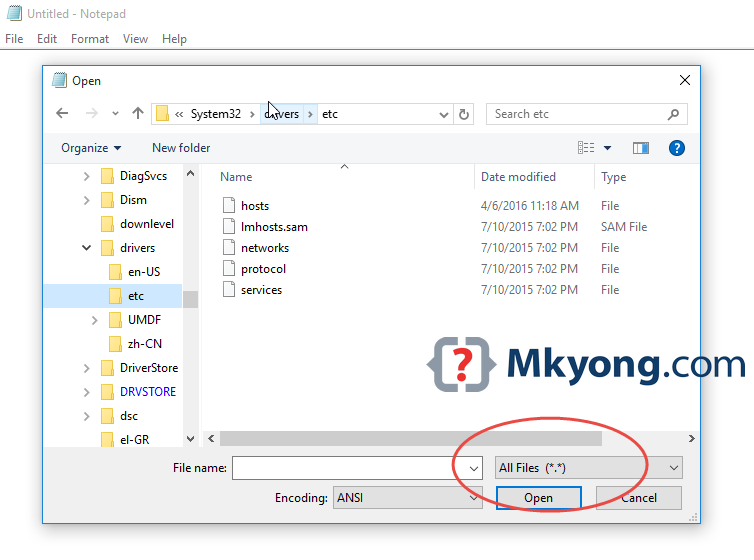
P.S In the open file dialog, select “All Files (*.*)”
2.2 Add a mapping of IP address to host name.
C:\Windows\System32\drivers\etc\hosts
# Copyright (c) 1993-2009 Microsoft Corp.
#
#...

# localhost name resolution is handled within DNS itself.
#	127.0.0.1       localhost
#	::1             localhost

#add this new line
45.56.65.145 linode-hydra
3. Test It
In command prompt, ping linode-hydra, now it will return 45.56.65.145
Command Prompt
C:\Users\mkyong>ping linode-hydra

Pinging linode-hydra [45.56.65.145] with 32 bytes of data:
Reply from 45.56.65.145: bytes=32 time=276ms TTL=51
Reply from 45.56.65.145: bytes=32 time=278ms TTL=51
Reply from 45.56.65.145: bytes=32 time=279ms TTL=51

Ping statistics for 45.56.65.145:
    Packets: Sent = 3, Received = 3, Lost = 0 (0% loss),
Approximate round trip times in milli-seconds:
    Minimum = 276ms, Maximum = 279ms, Average = 277ms

I tried this process on Windows 10 Pro, but it is creating a new text file to save.
Please open the host file with administrator permission. Refer step 1.