In this guide, we will explore multiple ways to install Micronaut CLI on different operating systems.
Table of Contents
- 1. Install Micronaut CLI using SDKMAN! (Recommended)
- 2. Install Micronaut CLI on macOS
- 3. Install Micronaut CLI on Windows
- 4. Install Micronaut CLI via Manual Download
- Conclusion
- References:
1. Install Micronaut CLI using SDKMAN! (Recommended)
SDKMAN! is the easiest and most flexible way to install and manage Micronaut CLI on any Unix-based platform, including macOS, Linux, Cygwin, Solaris, and FreeBSD.
Step 1: Install SDKMAN!
If SDKMAN! is not already installed, open a terminal and run the following command:
Linux/macOS:
curl -s "https://get.sdkman.io" | bash
After installation, restart the terminal and verify SDKMAN! installation:
source "$HOME/.sdkman/bin/sdkman-init.sh"
sdk version
Step 2: Install Micronaut CLI
With SDKMAN! installed, install Micronaut CLI by running:
sdk install micronaut
Verify the installation:
mn --version
or
mn -V
Sample Output:
Micronaut Version: 4.7.6
2. Install Micronaut CLI on macOS
If we are using macOS, Homebrew provides a quick and easy way to install Micronaut CLI.
Step 1: Install Micronaut CLI with Homebrew
brew install micronaut
Step 2: Verify Installation
mn --version
Sample Output:
Micronaut Version: 4.7.6
3. Install Micronaut CLI on Windows
For Windows users, Chocolatey is a convenient package manager to install Micronaut CLI.
Step 1: Install Micronaut CLI with Chocolatey
Open PowerShell as Administrator and run:
choco install micronaut
Step 2: Verify Installation
mn --version
Sample Output:
Micronaut Version: 4.7.6
4. Install Micronaut CLI via Manual Download
If we prefer a manual installation, follow these steps:
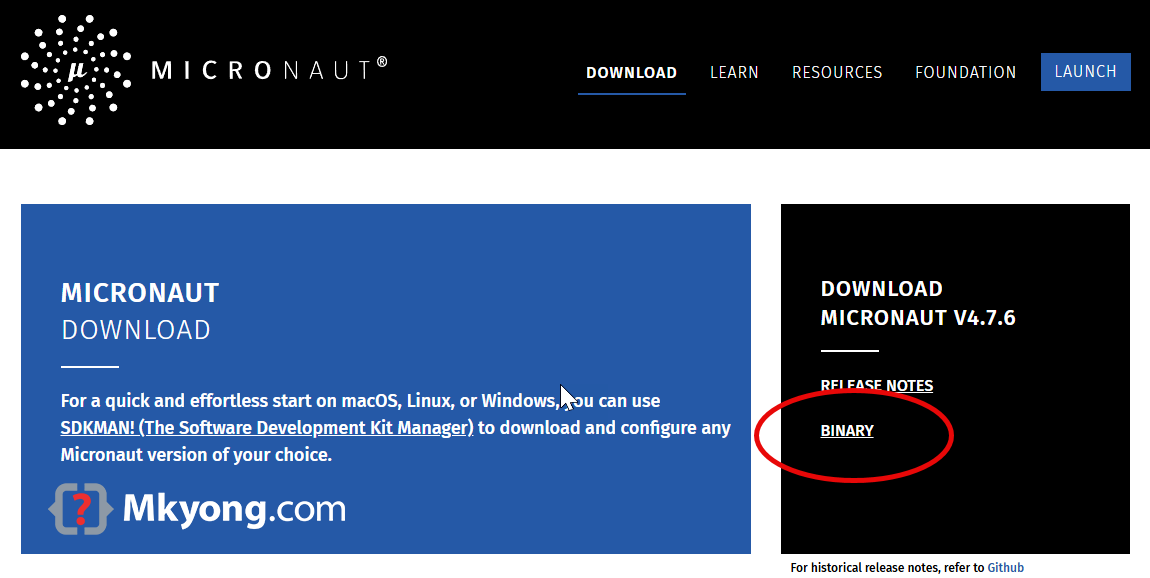
Step 1: Download Micronaut CLI
Visit the Micronaut Releases page and download the latest CLI version.
Step 2: Extract the Files
Extract the downloaded ZIP file to a preferred directory.
Step 3: Set Up Environment Variables
To use the Micronaut CLI globally, add its bin directory to the system’s PATH.
Linux/macOS:
Edit the ~/.bashrc or ~/.zshrc file and add:
export MICRONAUT_HOME=/path/to/micronaut
export PATH=$MICRONAUT_HOME/bin:$PATH
Apply changes:
source ~/.bashrc
Windows:
- Open System Properties > Advanced > Environment Variables.
- Under System Variables, add a new variable:
- Variable name:
MICRONAUT_HOME - Variable value: Path to the extracted Micronaut folder.
- Variable name:
- Edit the
Pathvariable and add:%MICRONAUT_HOME%\bin
Conclusion
Micronaut CLI is an essential tool for streamlining development in Micronaut applications. The easiest way to install it is via SDKMAN!, but macOS users can opt for Homebrew, Windows users can use Chocolatey, and a manual installation is always an option for advanced users.
After installation, verify everything works by running:
mn --version
This ensures our Micronaut environment is set up correctly and ready for development.
